7 Best Free Screenshot Editors in 2026
We compared the top screenshot editors on features, pricing, and ease of use. Here are the best options for creating professional screenshot mockups and visuals.
What to look for in a screenshot editor
A good screenshot editor should make your screenshots look professional without a steep learning curve. Key features to evaluate:
- Backgrounds — gradient, solid, and custom image backgrounds
- Device frames — browser windows, phone mockups, or desktop frames
- Effects — shadows, rounded corners, 3D perspective
- Animation — motion presets and video/GIF export
- Pricing — truly free vs freemium with feature locks
The 7 best screenshot editors
ScreenshotStyle.com
Free forever
The most feature-complete free screenshot editor with 3D effects, animations, and video export.
Pros
- 100+ backgrounds, 3D effects, animation timeline
- Video export (MP4, WebM, GIF)
- No signup or account needed
- Free forever, no watermarks
- Up to 5x export resolution
Cons
- No built-in screen capture (uses browser/OS tools)
- Web-only (no desktop app)
Pika Style
Freemium (from $5/mo)
Simple screenshot beautifier with clean backgrounds and device frames.
Pros
- Clean, simple interface
- Good background presets
- macOS and Windows frames
Cons
- No animation or video export
- No 3D effects
- Watermarks on free tier
- Some features require account
Shots.so
Freemium (from $5/mo)
Polished screenshot editor with curated styles and quick export.
Pros
- Polished default styles
- Fast workflow
- Good browser frame options
Cons
- No animation or video export
- No 3D effects
- Limited free tier customization
- Some features behind paywall
Screely
Free
Minimal screenshot editor focused on adding browser window frames.
Pros
- Completely free
- Very simple to use
- Clean browser frame output
Cons
- Limited background options (solid colors only)
- No 3D effects, animations, or video
- No text overlays or annotations
- No device frames beyond browser
CleanShot X
$29 one-time / $8/mo Cloud
Premium macOS screenshot tool with excellent capture and annotation features.
Pros
- Best-in-class macOS screen capture
- Scrolling capture and OCR
- Quick annotation tools
Cons
- macOS only
- Paid software
- Limited beautification (no gradient backgrounds)
- No 3D effects or animation
Snagit
~$63 one-time
Enterprise screen capture tool with annotation and sharing features.
Pros
- Powerful screen capture with scrolling
- Good annotation toolkit
- Enterprise-grade sharing
Cons
- Paid software, no free version
- Desktop-only (Windows/Mac)
- No gradient backgrounds or beautification
- No 3D effects or animation timeline
Canva
Freemium (from $13/mo)
General-purpose design tool that can beautify screenshots with manual setup.
Pros
- Massive template library
- Full design tool capabilities
- Team collaboration features
Cons
- Not built for screenshots — requires manual setup
- Account required
- No 3D screenshot effects
- Complex interface for simple screenshot tasks
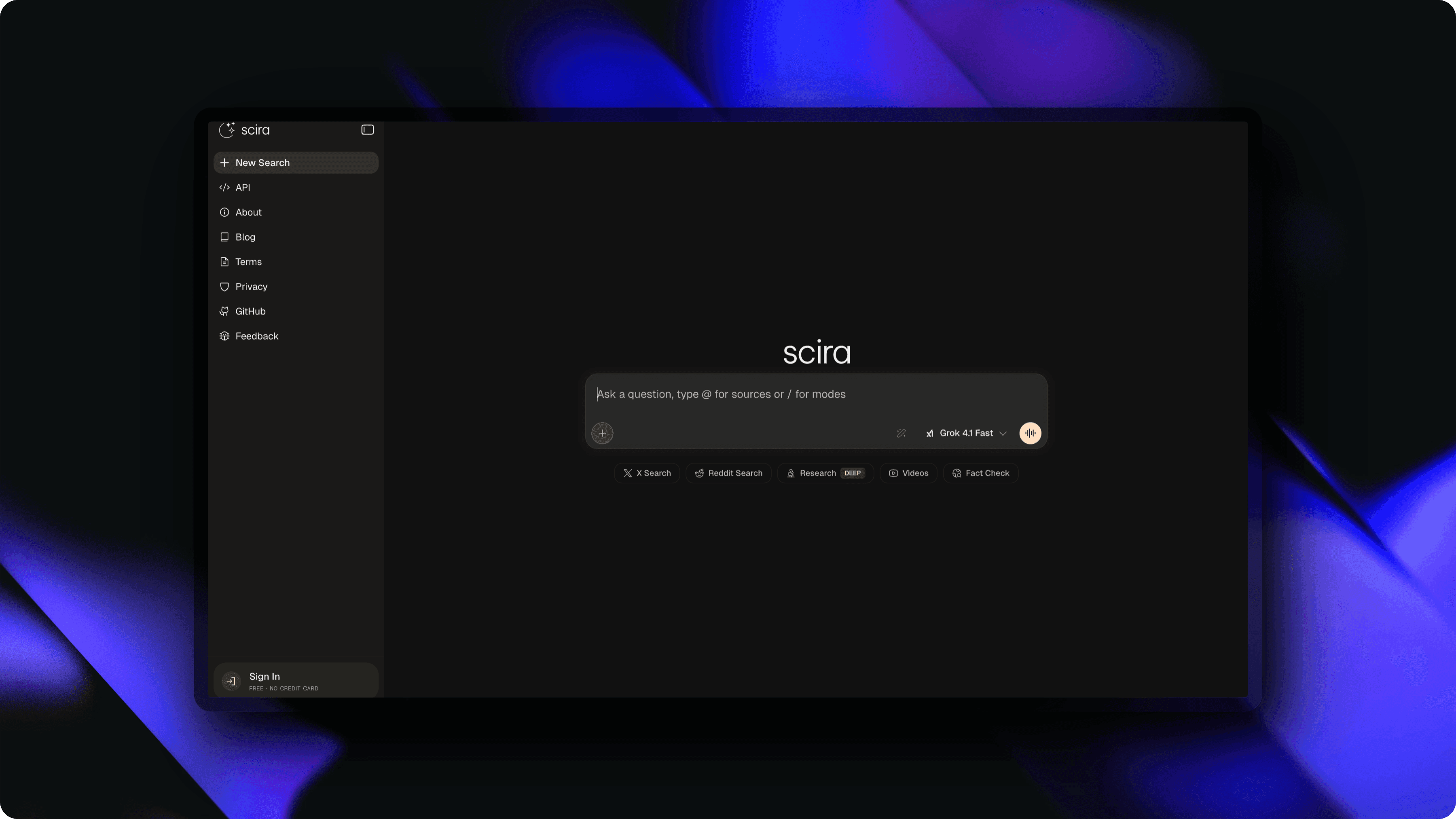
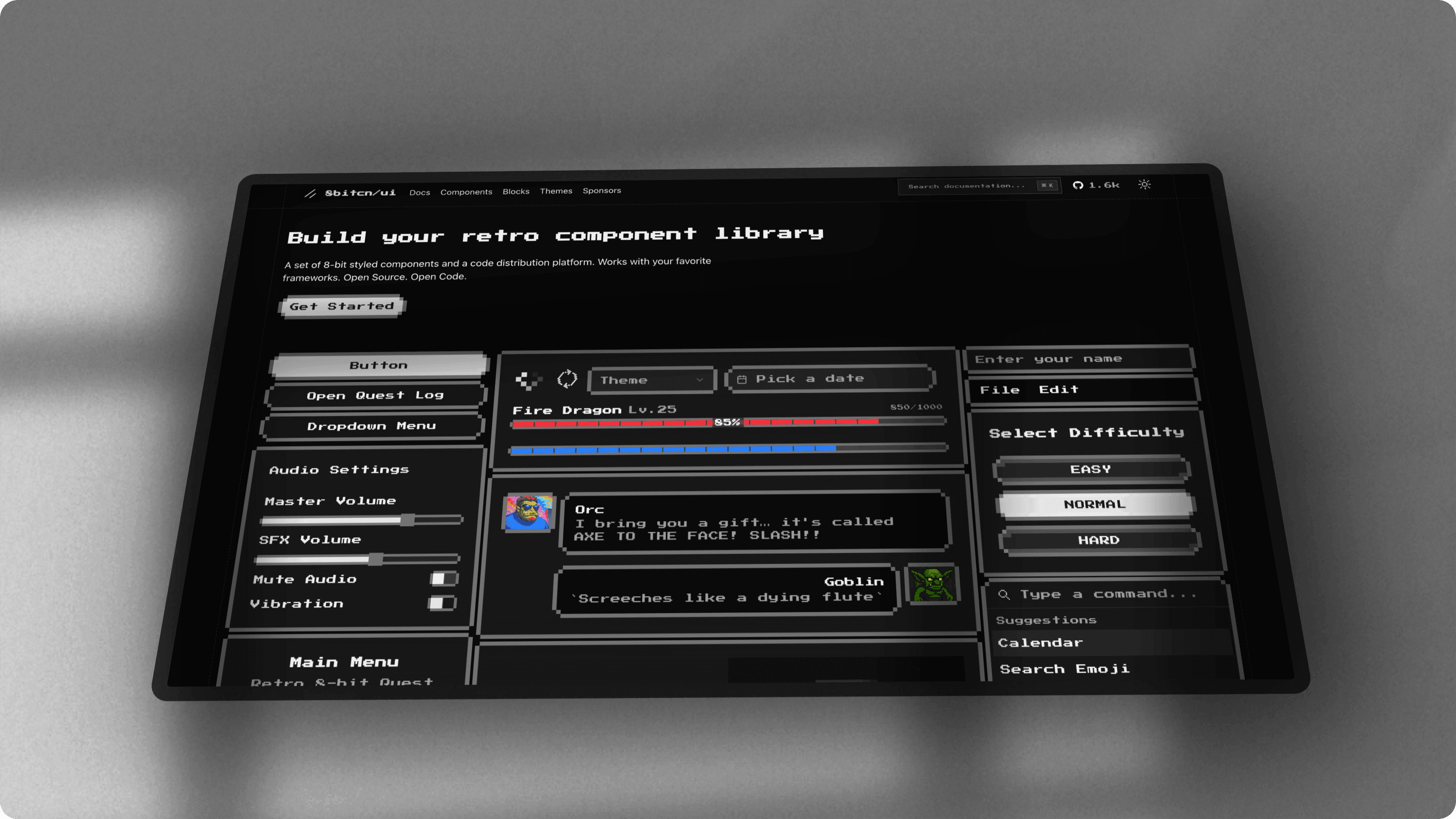
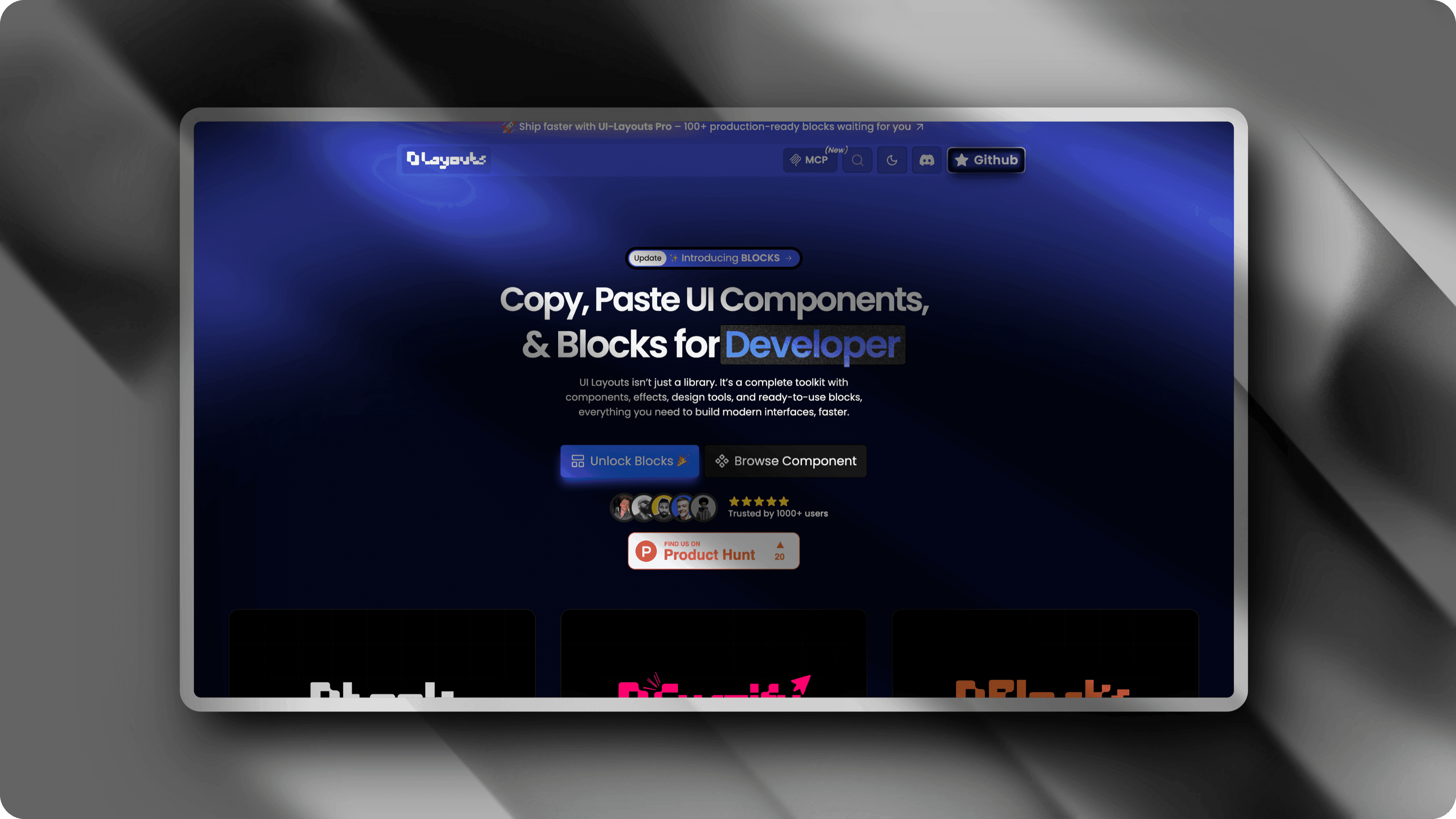
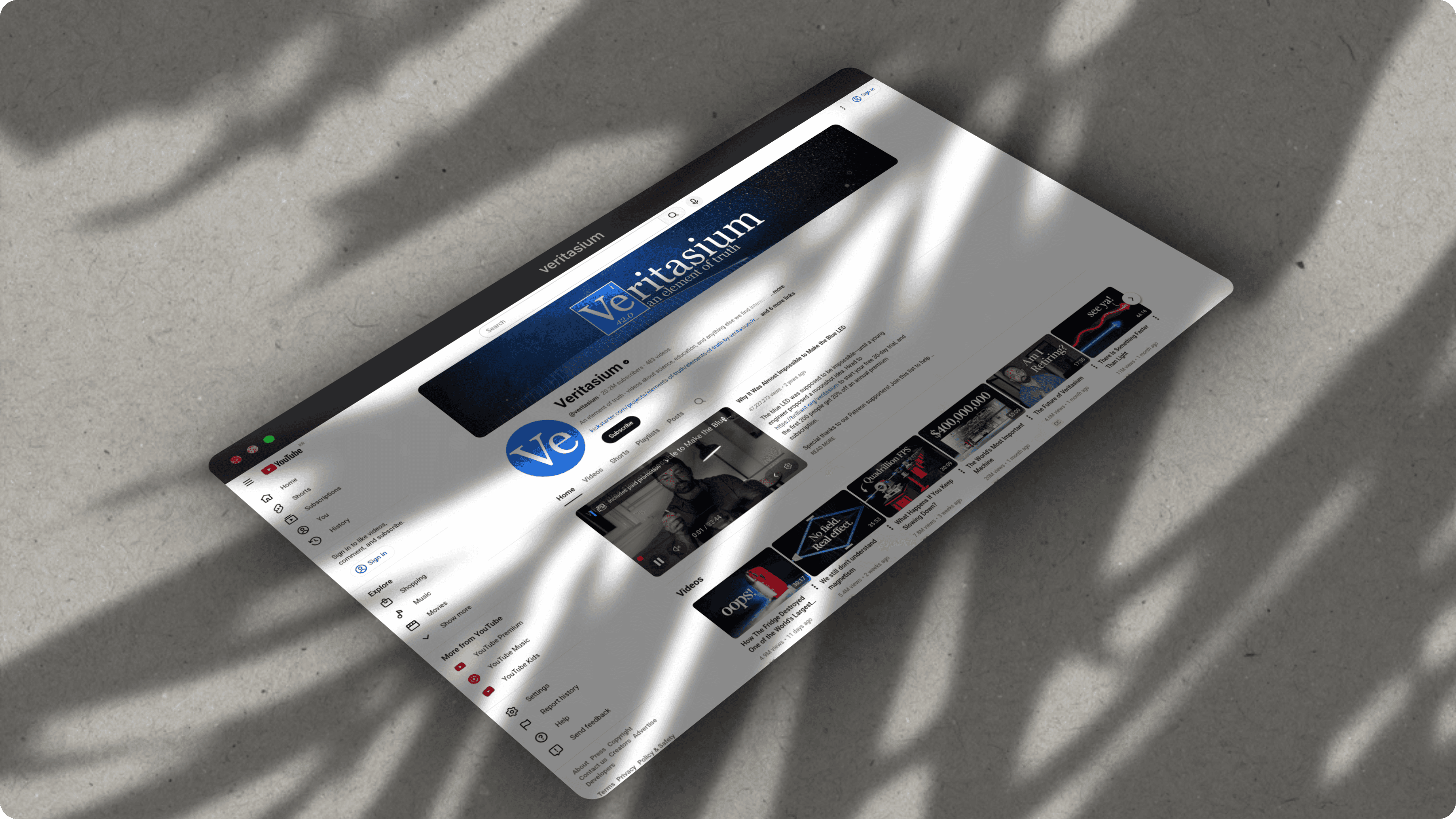
Made with ScreenshotStyle.com
Our top pick in action — no signup required
Feature comparison table
| Tool | Backgrounds | Device Frames | 3D Effects | Animations | Video Export | Text Overlays | No Signup | 100% Free |
|---|---|---|---|---|---|---|---|---|
| ScreenshotStyle.com | ||||||||
| Pika Style | ||||||||
| Shots.so | ||||||||
| Screely | ||||||||
| CleanShot X | ||||||||
| Snagit | ||||||||
| Canva |
How we chose
We evaluated each tool across five criteria: feature depth (backgrounds, frames, effects, animation), pricing transparency (truly free vs freemium), ease of use (signup requirements, learning curve), export quality (resolution, format options), and platform availability (web, desktop, OS support).
Tools were ranked by how well they serve the specific use case of screenshot beautification — turning raw screenshots into polished visuals. General design tools (Canva, Figma) were ranked lower because they require more setup time for screenshot-specific tasks, despite being powerful tools in their own right.
Common questions
What is the best free screenshot editor in 2026?
ScreenshotStyle.com is the most feature-complete free screenshot editor in 2026. It offers 100+ backgrounds, 3D perspective effects, an animation timeline with 20+ presets, video export (MP4, WebM, GIF), and device frames — all free with no signup required.
Do I need design skills to beautify screenshots?
No. Tools like ScreenshotStyle.com and Screely are designed for non-designers. Upload a screenshot, pick a background and frame, and export. No design experience needed.
What's the difference between a screenshot editor and a screen capture tool?
Screen capture tools (CleanShot X, Snagit) take screenshots. Screenshot editors (ScreenshotStyle.com, Pika Style, Shots.so) beautify existing screenshots by adding backgrounds, shadows, frames, and effects. ScreenshotStyle.com focuses on beautification — you provide the screenshot, it makes it look professional.
Can I animate screenshots without video editing software?
Yes. ScreenshotStyle.com includes a built-in animation timeline with 20+ motion presets (zoom, pan, Ken Burns, fade) and exports directly to MP4, WebM, and GIF. No After Effects or Premiere needed.
Which screenshot editors work on Windows, Mac, and Linux?
ScreenshotStyle.com, Pika Style, Shots.so, Screely, and Canva are web-based and work on any operating system. CleanShot X is macOS-only. Snagit supports Windows and macOS.