App Store Screenshots
Create Stunning App Store Screenshots
Turn raw app screenshots into polished App Store and Google Play visuals. Add backgrounds, device frames, text overlays, and export at the exact dimensions stores require.
Your app store listing is the first thing potential users see. ScreenshotStyle.com is a free, browser-based app store screenshot generator that helps indie developers and teams create professional-grade iOS and Android store images without Figma, Photoshop, or a designer. Upload a screenshot, pick a gradient background, wrap it in a device frame, add a headline — and export a store-ready image in under 30 seconds.
Open Editor — It's Free
Plain Screenshots Don't Convert
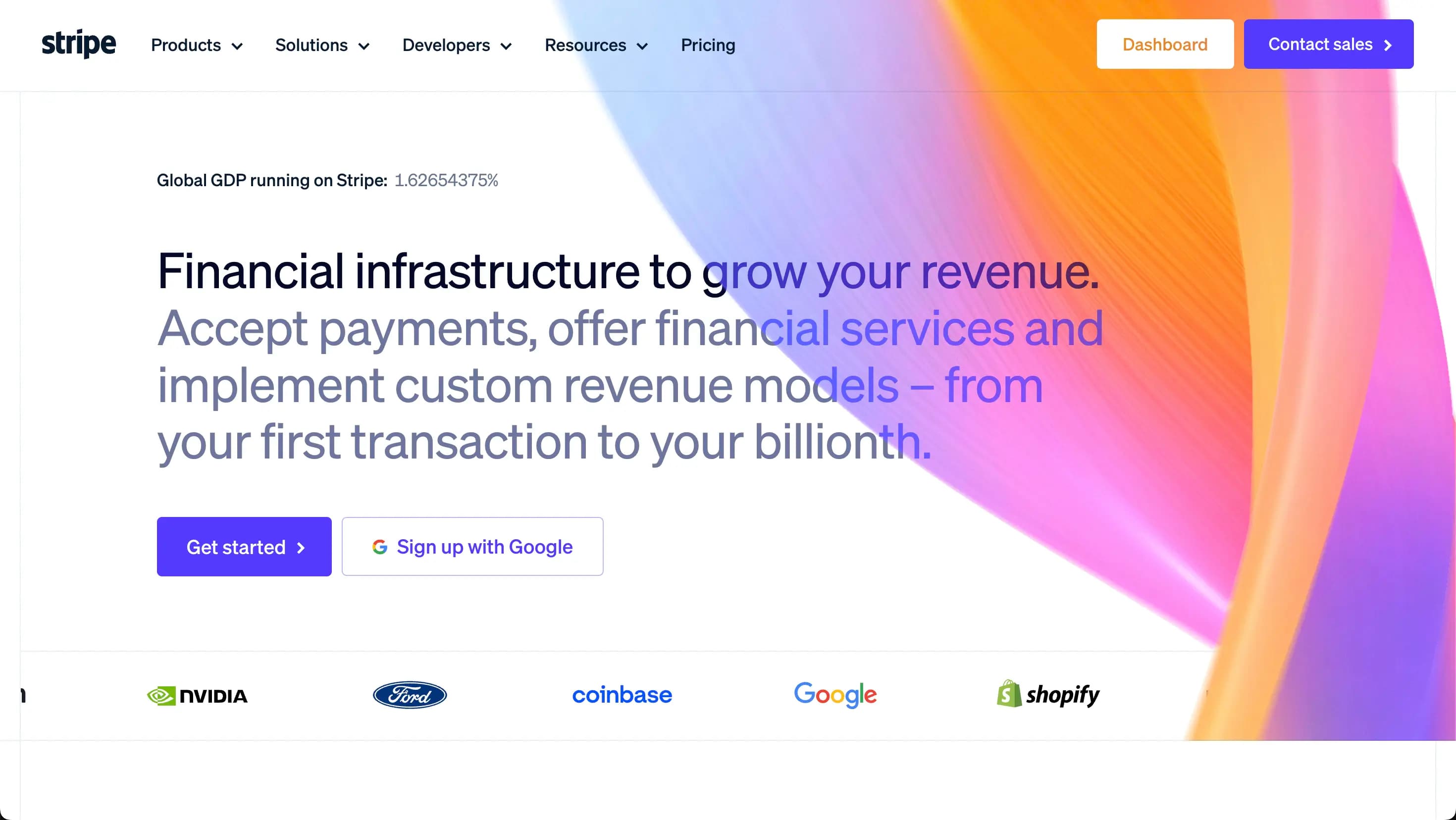
Unpolished app screenshots hurt your download rate. Users scroll past bland listings without a second look. Apple and Google both recommend styled screenshots with context — but hiring a designer or learning Figma for store screenshots wastes time and money you could spend building your app.
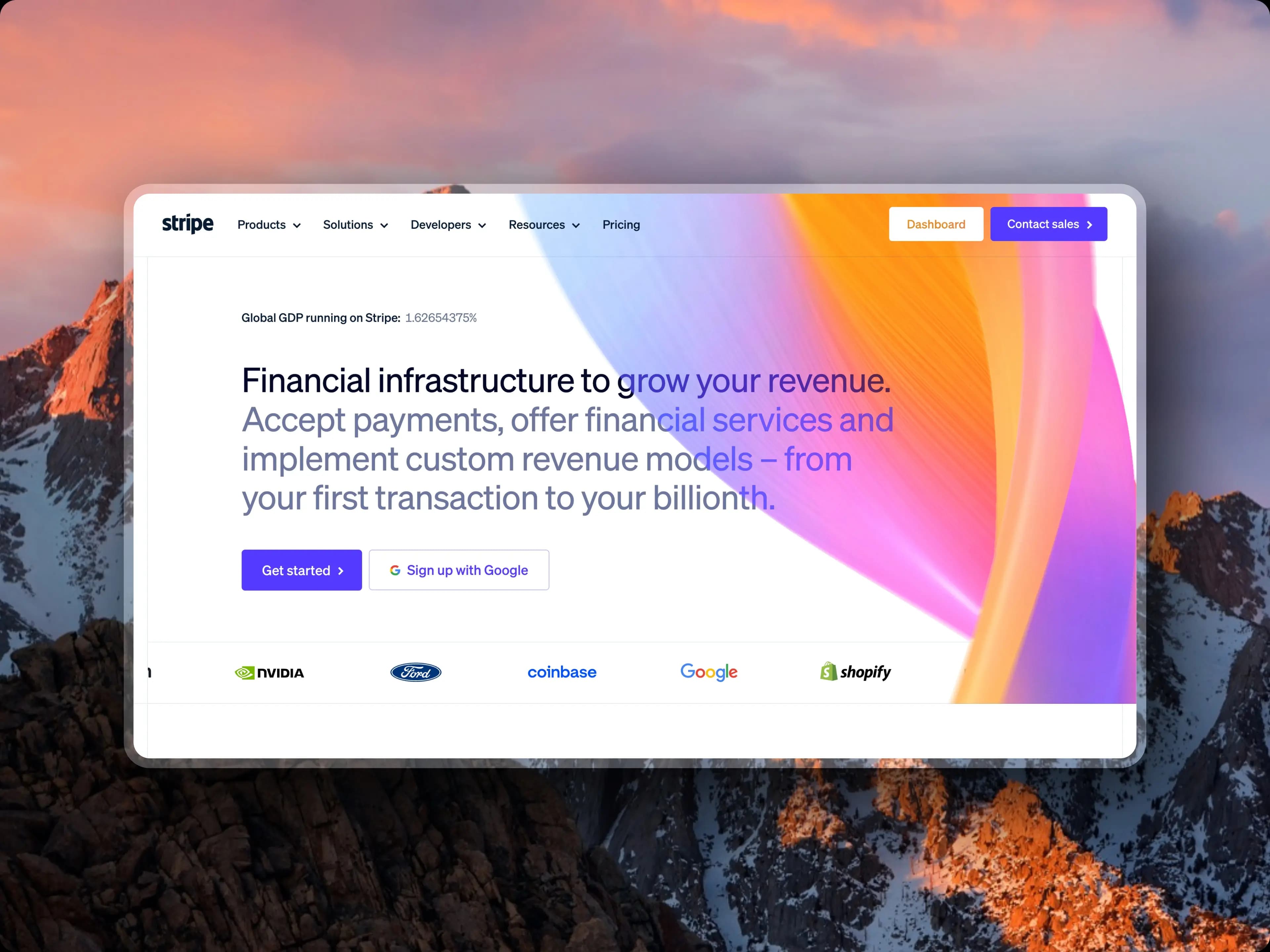
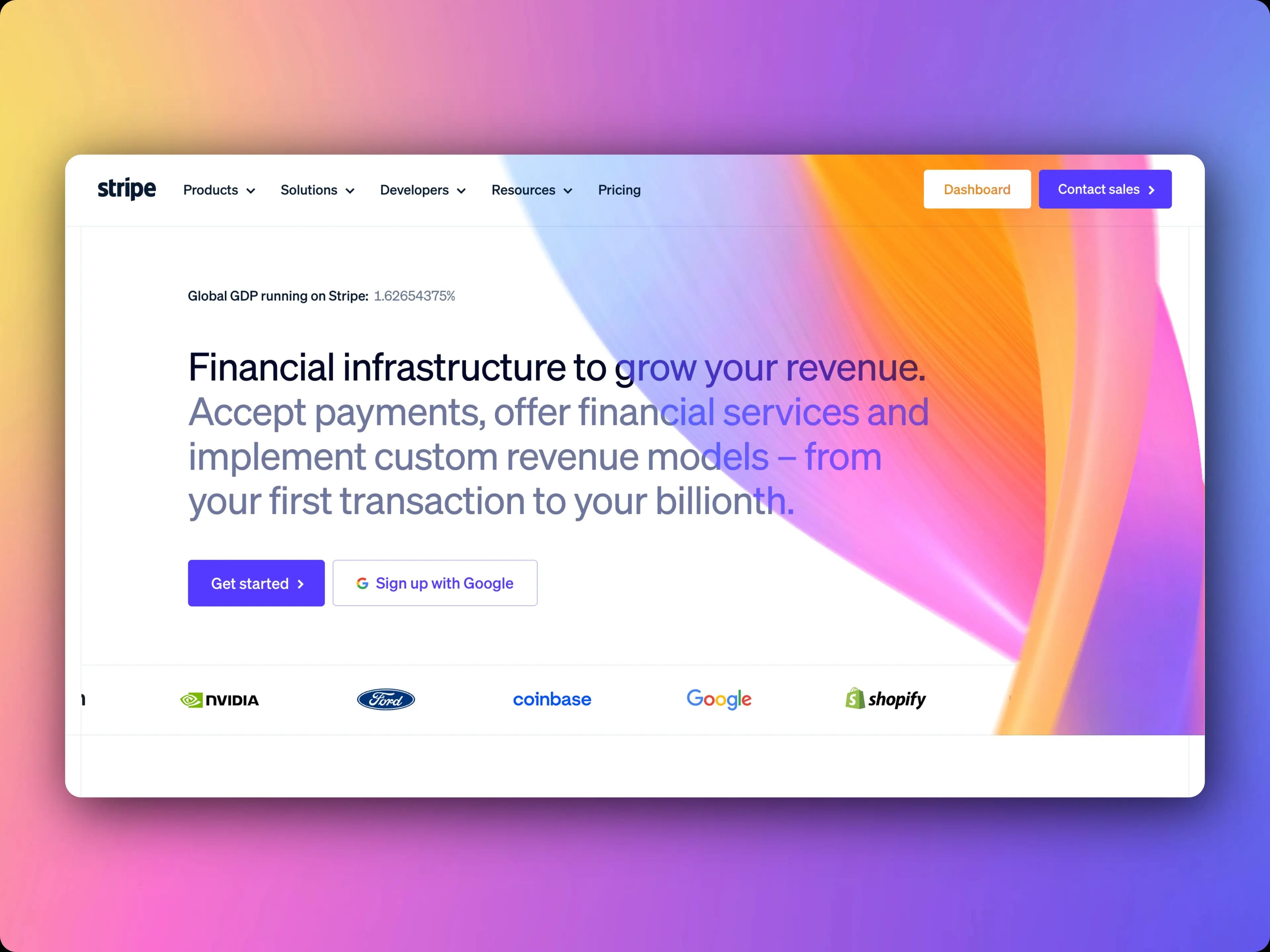
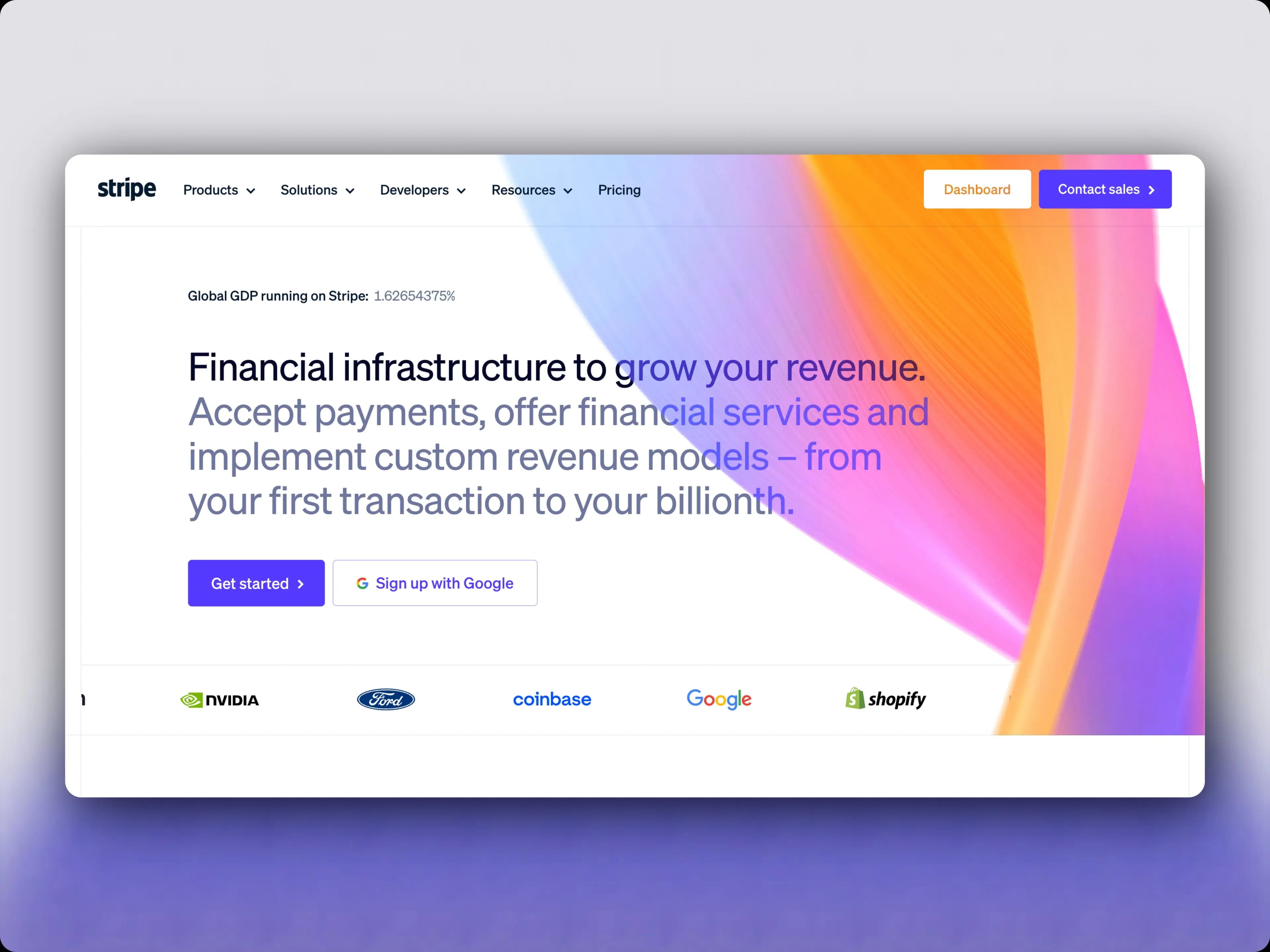
Store-Ready Screenshots in Seconds
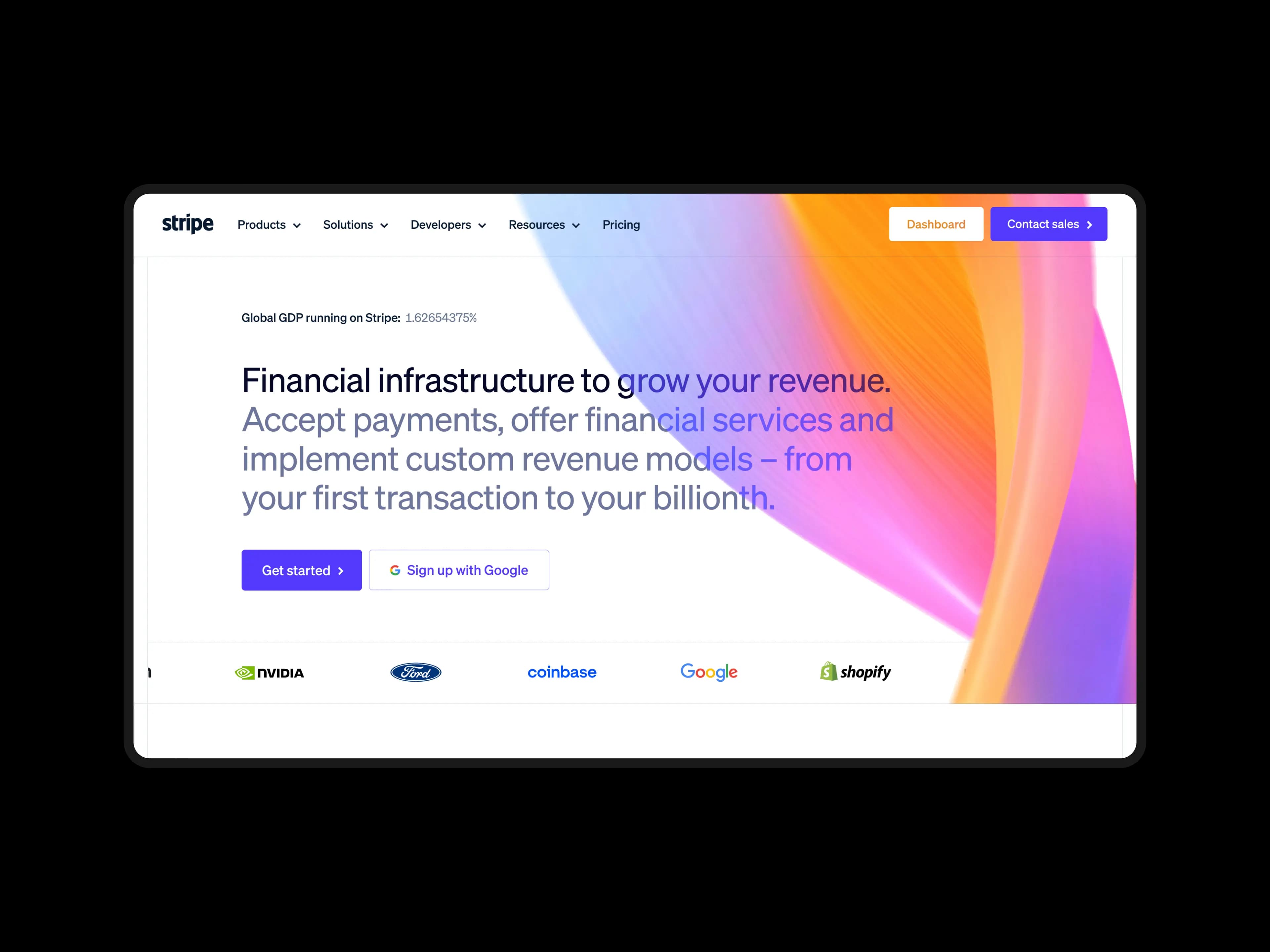
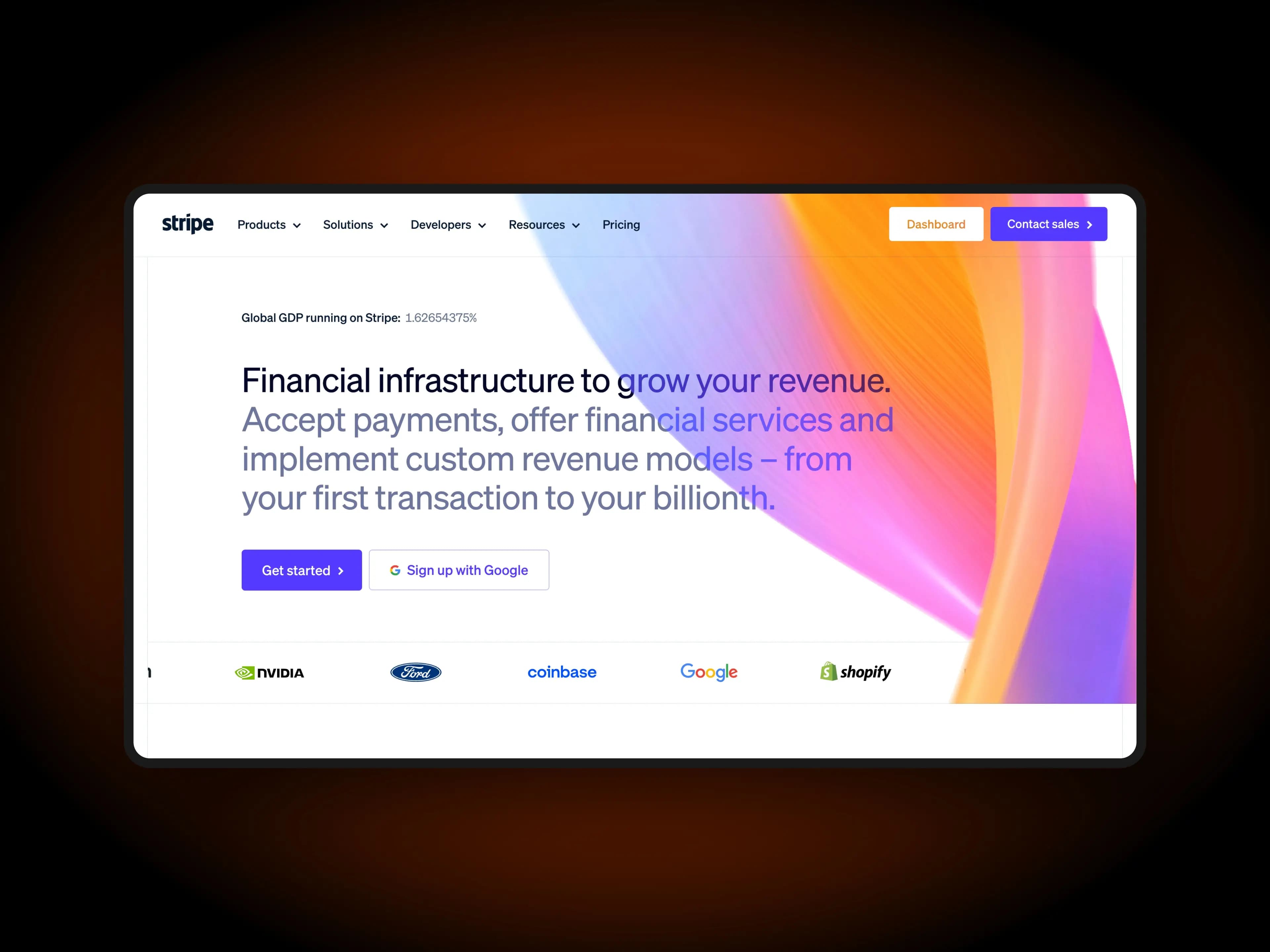
ScreenshotStyle.com lets you drop in your app screenshots, add gradient backgrounds and device frames, overlay marketing text, and export at the right resolution — all in your browser, for free. No account, no watermarks, no learning curve. Paste a screenshot, pick a style, export.
What you get
Correct Dimensions
Export at exact App Store and Google Play required sizes — 6.7-inch, 6.5-inch, 5.5-inch, iPad, and Android phone/tablet. No guessing ratios or resizing after the fact. Set your canvas to any custom pixel size.
Device Frames Included
Wrap your screenshots in realistic iPhone, iPad, or Android frames to show users what your app looks like in their hand. Choose from Safari, Chrome, macOS, and more frame styles in both light and dark mode.
Text & Badge Overlays
Add marketing copy, feature callouts, and badges directly onto your screenshots with 25+ fonts. Write headlines like 'Track your habits' or 'Sync across devices' and position them exactly where you want.
Consistent Branding
Use the same background and styling across all your store screenshots for a cohesive, professional listing. Save your configuration and reapply it to every new screenshot with one click.
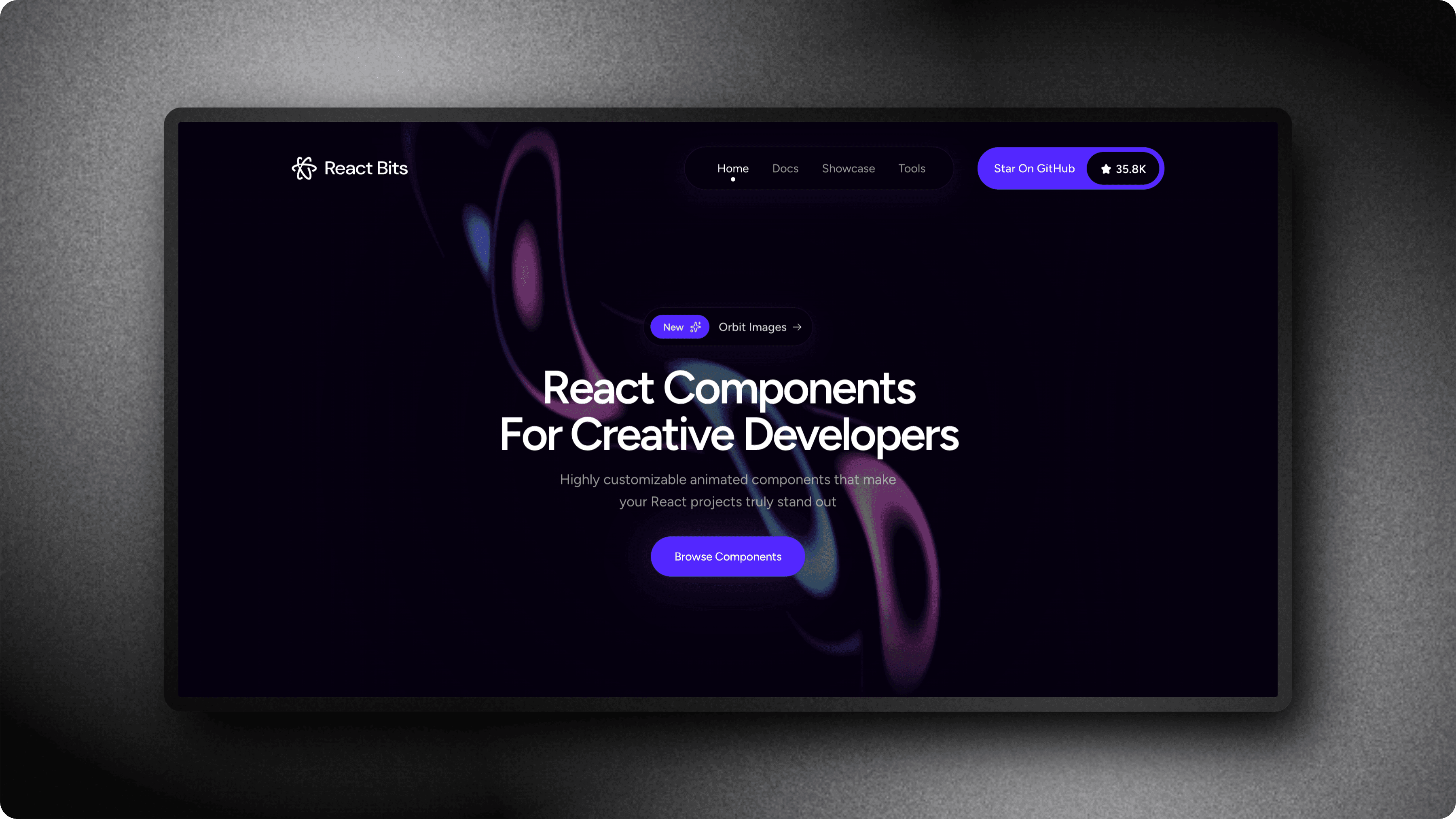
Why App Store Screenshots Matter
App store screenshots are the single biggest factor in whether someone downloads your app. According to Apple, 70% of App Store visitors never go past the first impression — meaning your screenshots need to do the selling. Google Play A/B testing data shows that optimized screenshots can increase install rates by 25-30%. A polished screenshot with a gradient background, device context, and a clear headline outperforms a raw screenshot every time. ScreenshotStyle.com makes it easy to create these high-converting visuals without any design skills.
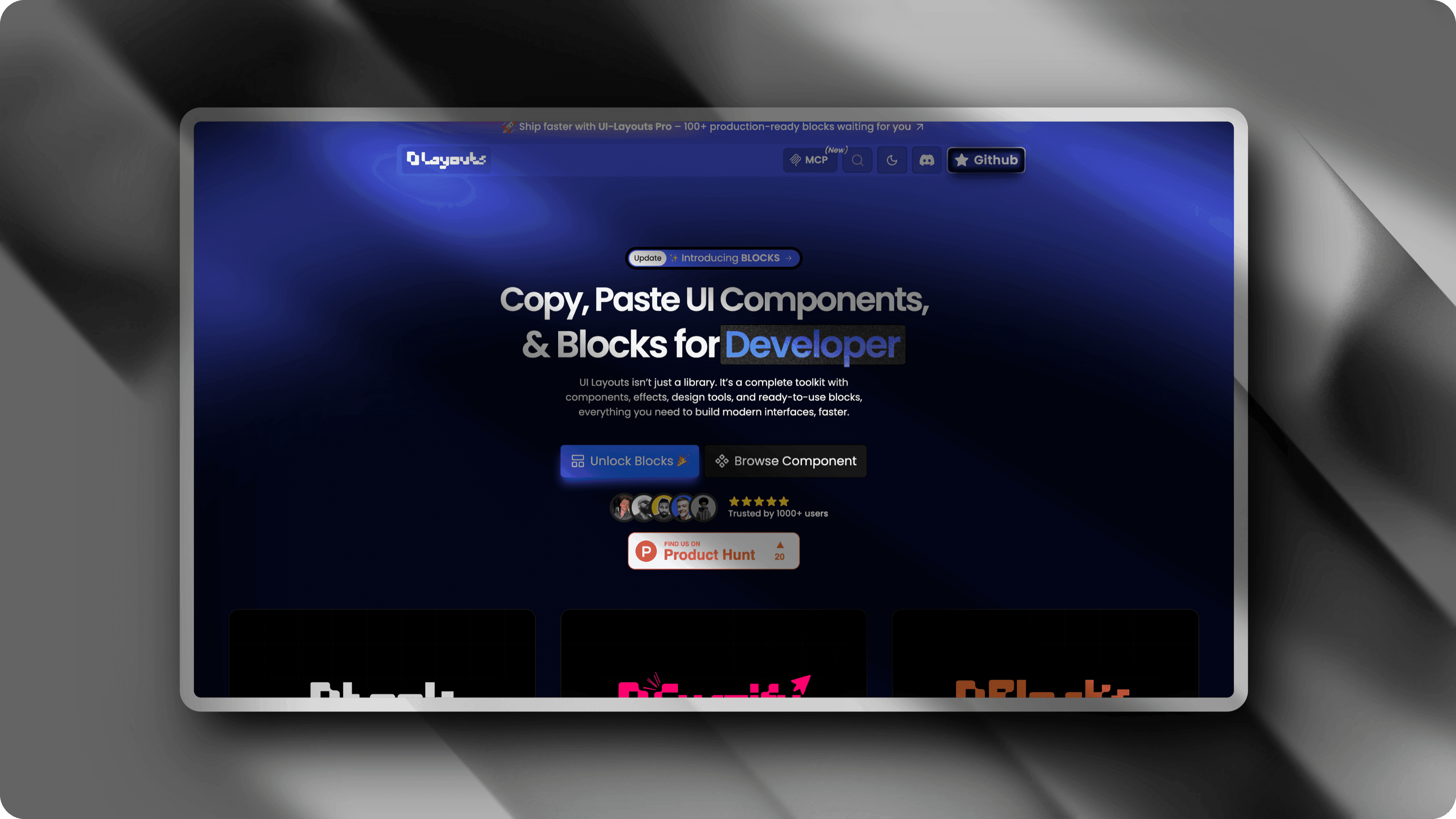
100+ Gradient Backgrounds for App Store Images
Choosing the right background for your app store screenshots sets the tone for your entire listing. ScreenshotStyle.com includes over 100 gradient presets organized by mood — vibrant gradients for fitness and social apps, dark premium gradients for fintech and productivity, soft pastels for wellness and lifestyle. You can also use solid colors, mesh gradients, or upload a custom background image that matches your brand guidelines.
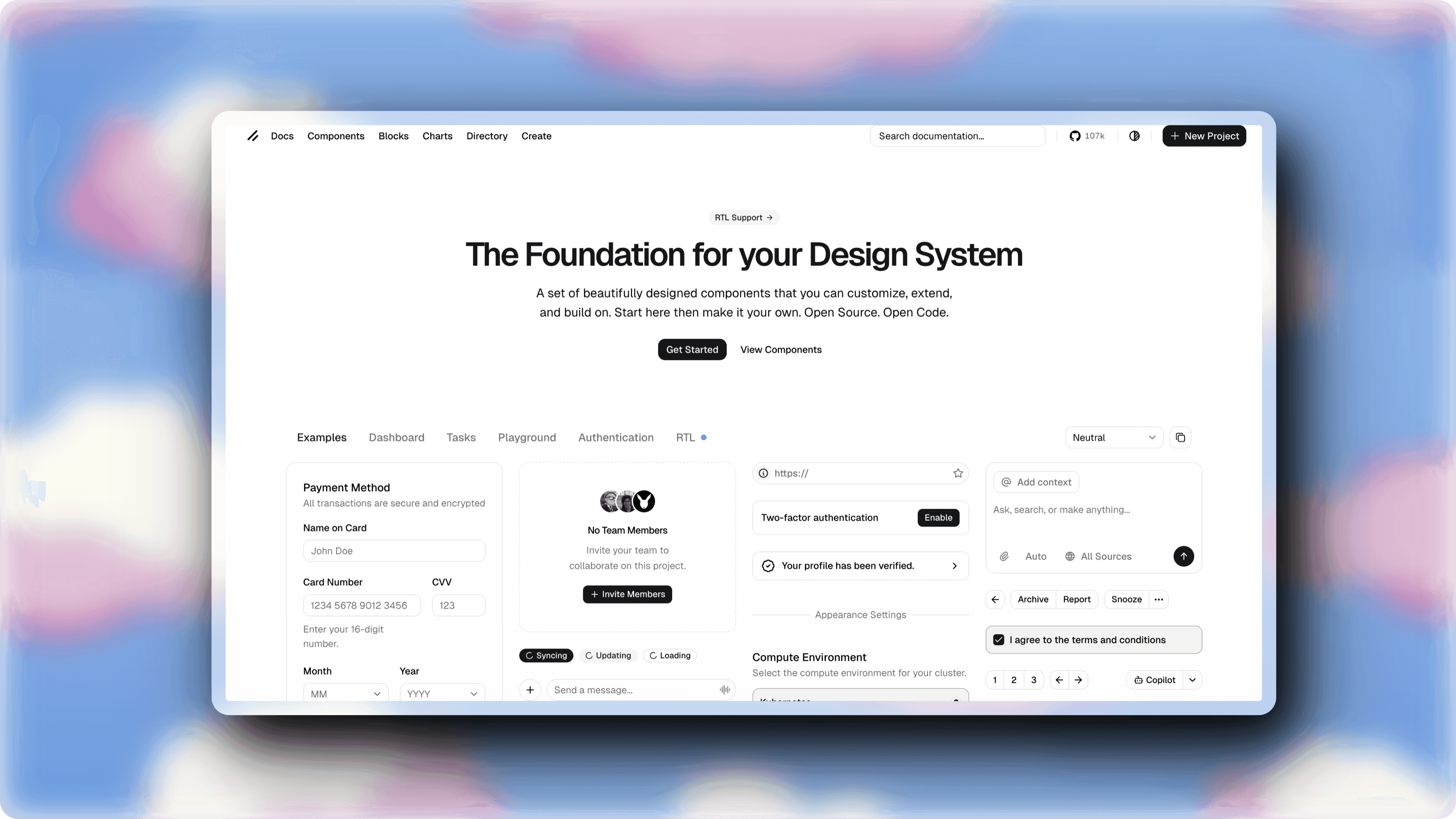
Device Frames and Browser Mockups
Wrapping your app screenshots in a device frame adds instant credibility. Users can picture your app on their phone or tablet. ScreenshotStyle.com offers macOS window frames, Safari and Chrome browser mockups, and mobile-style frames — all available in light and dark mode. For App Store submissions, pairing a device frame with a gradient background creates the professional look that top apps use in their listings.
See it in action
Real examples created with ScreenshotStyle.com

How it works
Upload your app screenshot
Drag and drop or paste a screenshot from your iOS Simulator, Android emulator, or real device. ScreenshotStyle.com supports PNG, JPG, and WebP — any format your screenshot tool outputs.
Choose a background and frame
Pick from 100+ gradient backgrounds and add a device frame to give context. Try a vibrant gradient for consumer apps or a dark, premium background for business tools.
Add text overlays
Write headlines that explain each feature — 'Track your habits', 'Sync across devices', 'Get real-time notifications'. Choose from 25+ fonts and position text above, below, or alongside your screenshot.
Export at store dimensions
Set your canvas to the exact pixel dimensions your app store requires and export. Up to 5x scale for retina-sharp output. Download as PNG for Apple or JPG for Google Play.
Common questions
What dimensions does the App Store require?
Apple requires screenshots for 6.7-inch (1290×2796), 6.5-inch (1284×2778), 5.5-inch (1242×2208), and iPad (2048×2732) displays. Google Play recommends 16:9 or 9:16 aspect ratios with a minimum of 320px and maximum of 3840px on any side. ScreenshotStyle.com lets you set custom canvas dimensions to match any of these requirements exactly.
Can I add device frames to my app screenshots?
Yes. ScreenshotStyle.com includes macOS window frames, Safari and Chrome browser mockups, and mobile-style frames in both light and dark mode. Wrap your screenshots in device context to show users what your app looks like on a real device — this is what Apple and Google recommend for high-converting listings.
Is this free for app store screenshots?
Yes, completely free. All features including 100+ gradient backgrounds, device frames, text overlays, 3D perspective effects, and high-res export up to 5x are included at no cost. There are no watermarks, no signup required, and no limits on exports.
How is this different from Canva or Figma for app store screenshots?
ScreenshotStyle.com is purpose-built for screenshot styling. You don't need to find templates, create accounts, or learn a design tool. Drag in a screenshot, pick a background, add a frame, export. The entire workflow takes 30 seconds compared to 15-30 minutes in Figma or Canva.
Can I create consistent screenshots for my entire app listing?
Yes. Set your background, frame, padding, and shadow settings once, then apply the same style to every screenshot. This ensures your App Store or Google Play listing has a cohesive, professional look that builds trust with potential users.