Documentation Images
Docs Deserve Better Screenshots
Create clean, consistent screenshots for documentation, help articles, and READMEs. Add annotations, browser frames, and subtle styling that makes docs look professional.
Good documentation needs clear, consistent visuals — not an afterthought collection of mismatched screenshots. ScreenshotStyle.com is a free documentation screenshot tool and docs screenshot beautifier that helps teams create uniform, annotated images for help articles, knowledge base images, github readme images, and api documentation screenshots. Add browser frames, numbered callouts, clean backgrounds, and export at consistent dimensions so every page of your technical documentation screenshots looks polished and professional.
Open Editor — It's Free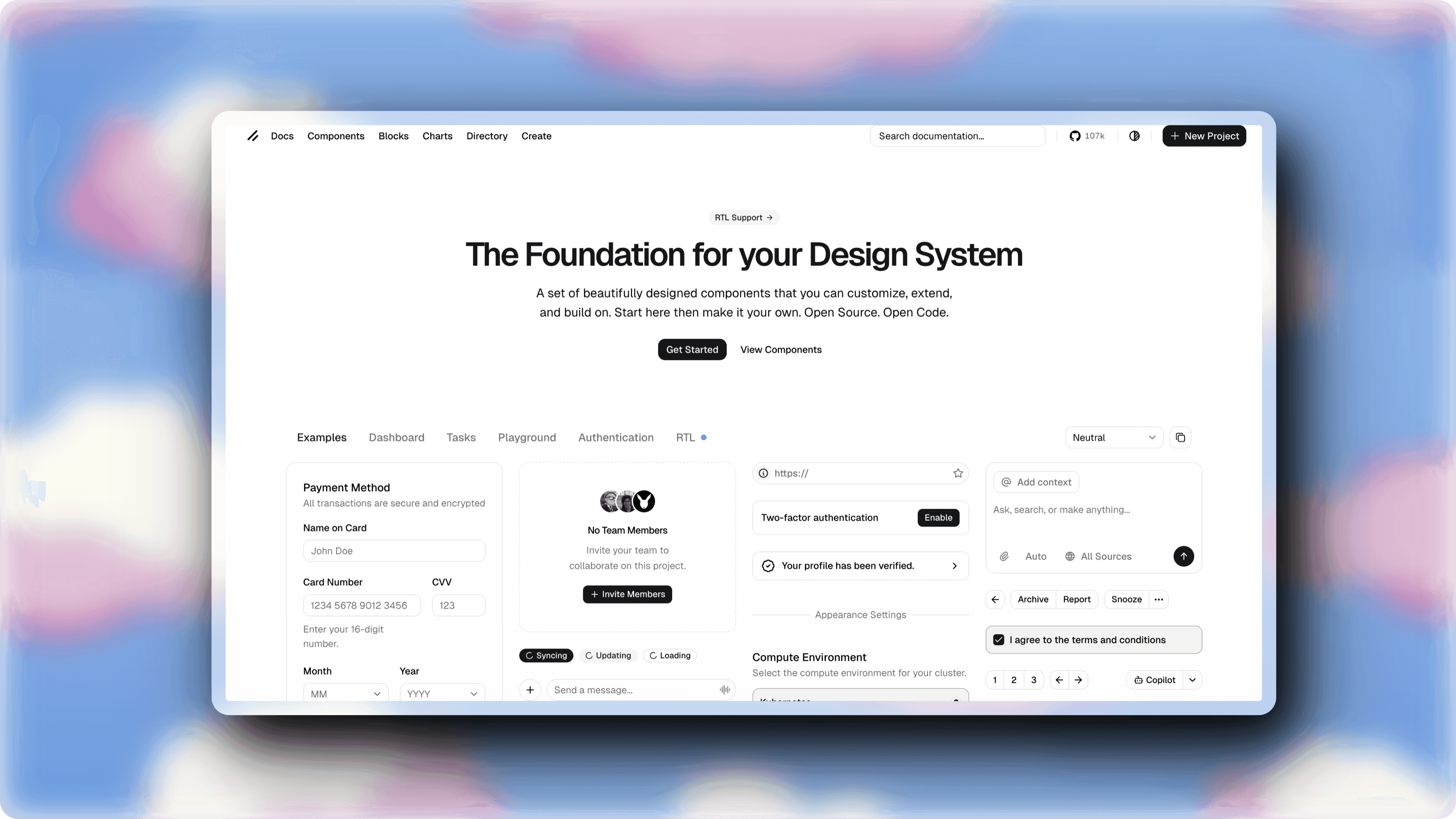

Inconsistent Docs Screenshots Look Unprofessional
Documentation with mismatched screenshot sizes, random backgrounds, and no annotations confuses users. Poor visuals in docs increase support tickets and reduce product adoption.
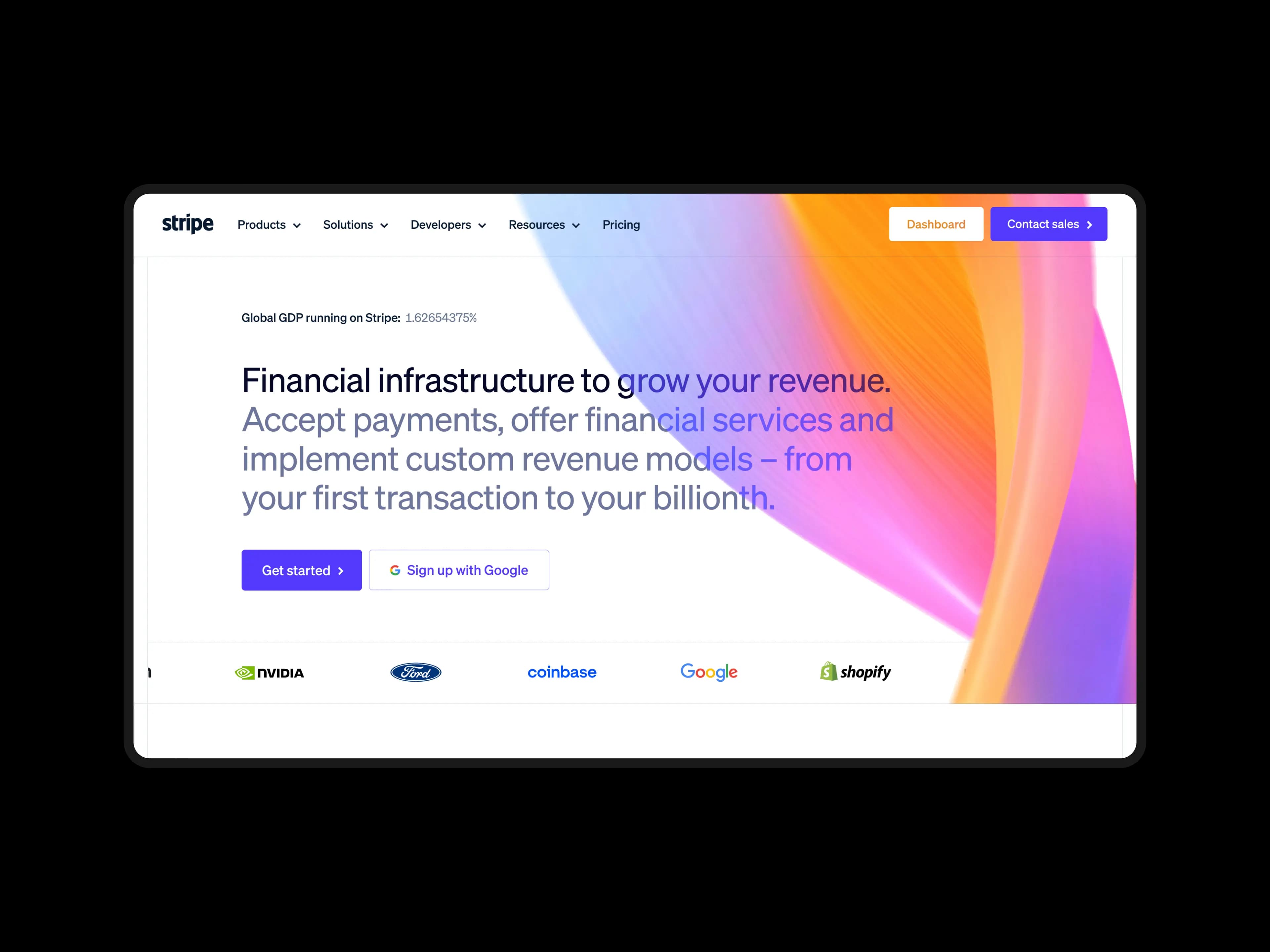
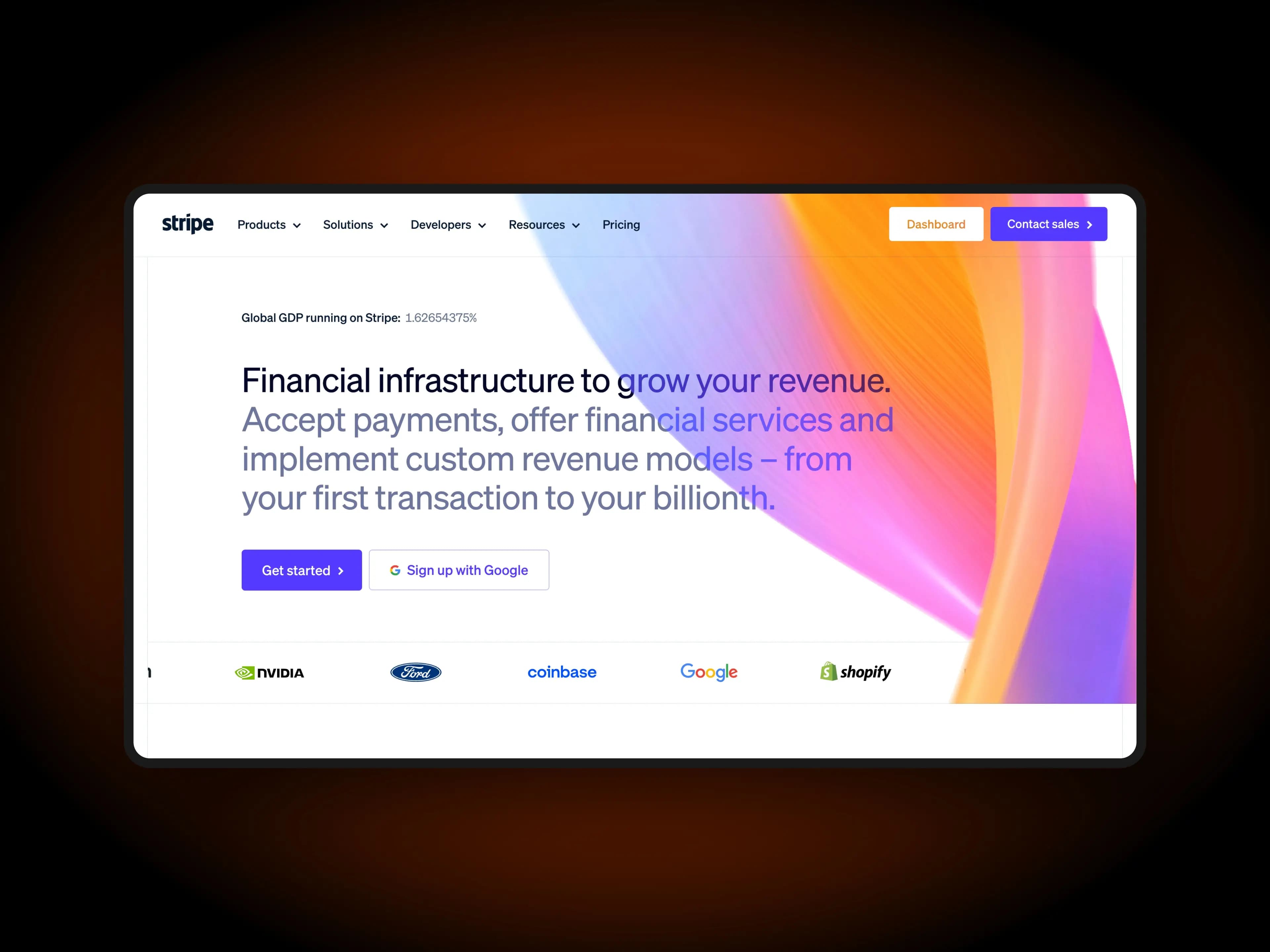
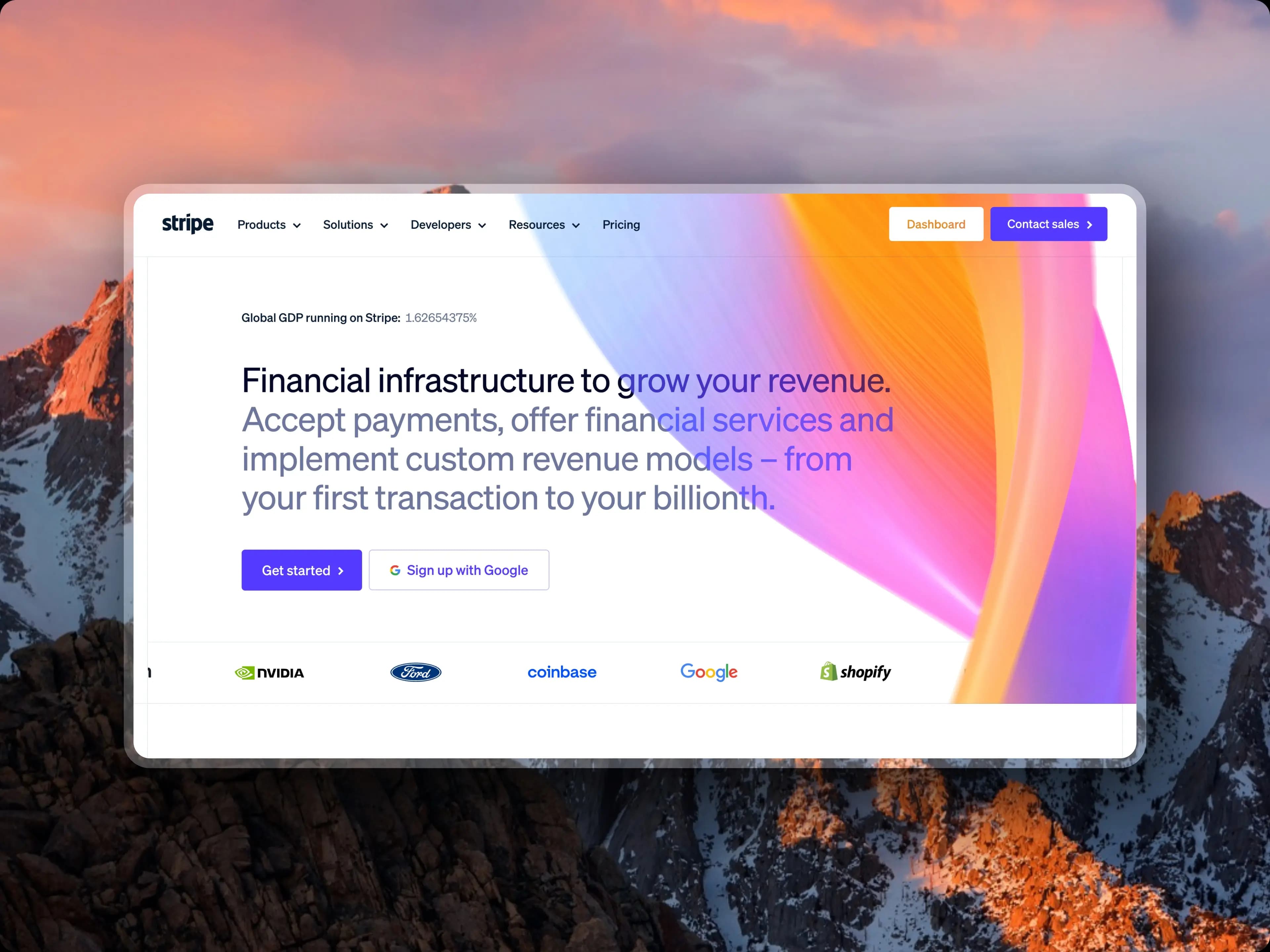
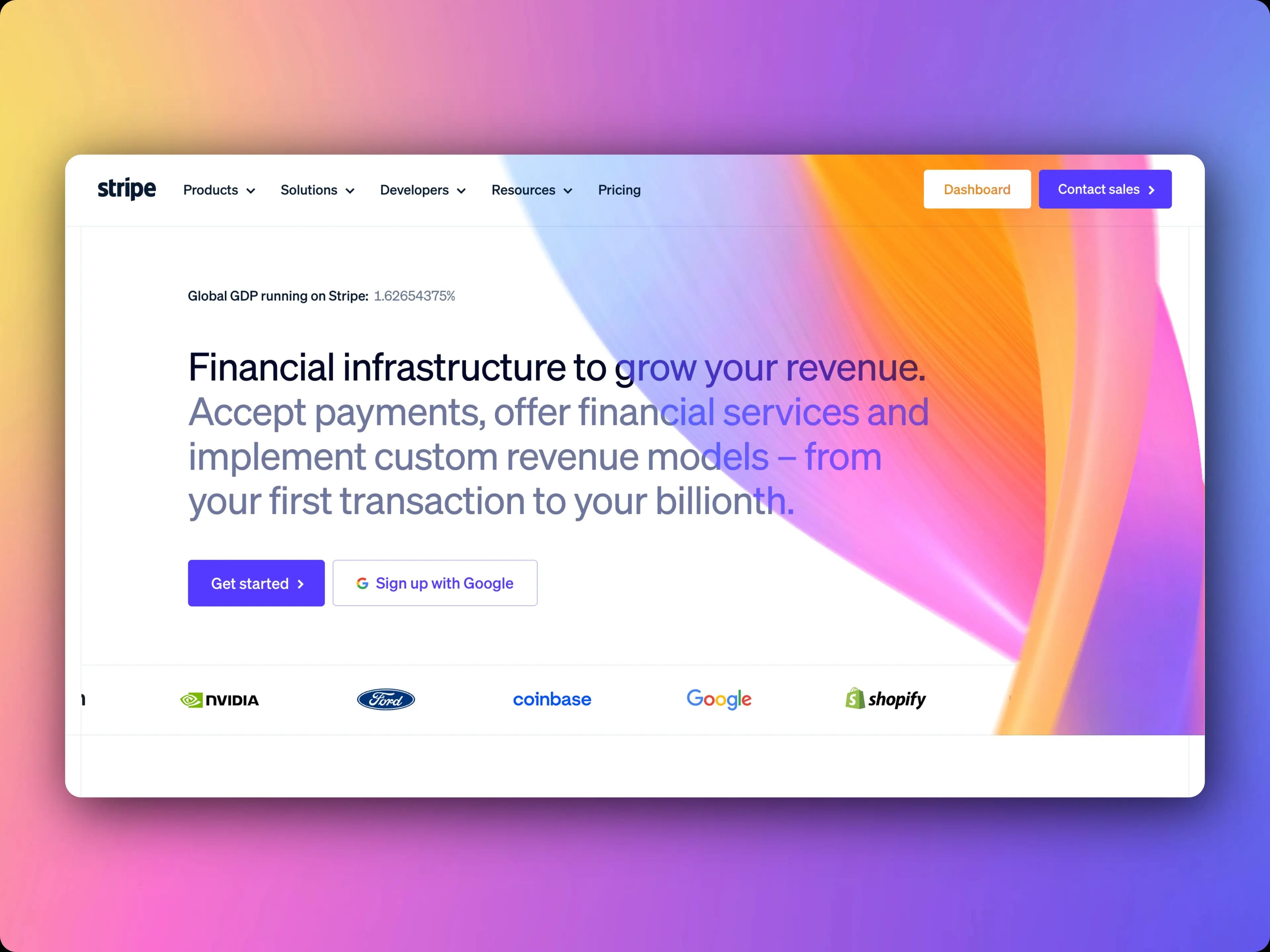
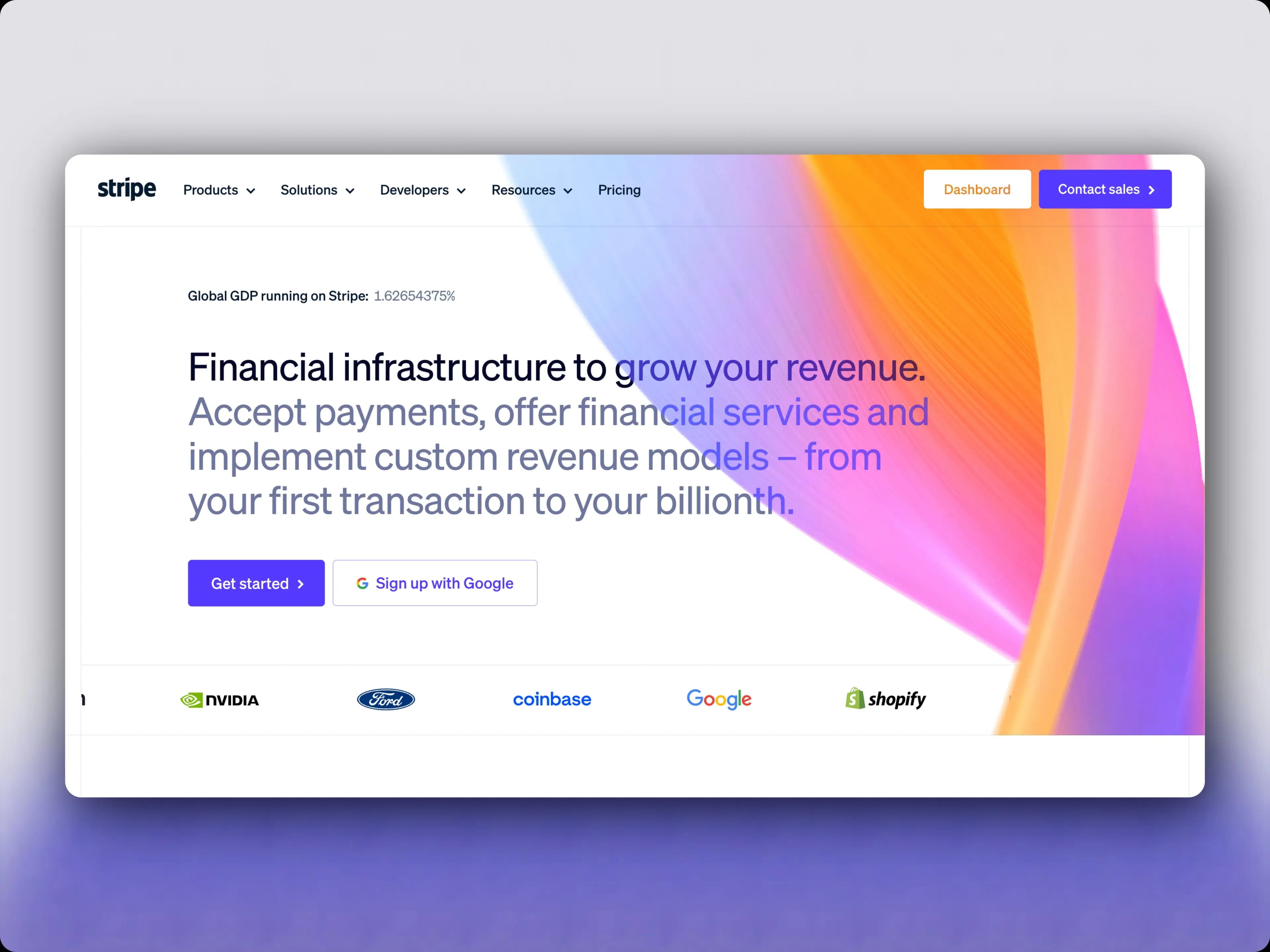
Consistent, Annotated Doc Screenshots
ScreenshotStyle.com helps you create documentation screenshots with consistent sizing, clean backgrounds, browser frames, and text annotations — all from your browser.
What you get
Consistent Sizing
Set a canvas size once and use it across all your documentation screenshots for a uniform look.
Annotations & Callouts
Add numbered callouts, arrows, and labels to guide users through complex interfaces.
Clean Backgrounds
Subtle solid or light gradient backgrounds that complement your docs without distracting from content.
Browser Frame Context
Add browser frames to show users exactly where to look in your web application.
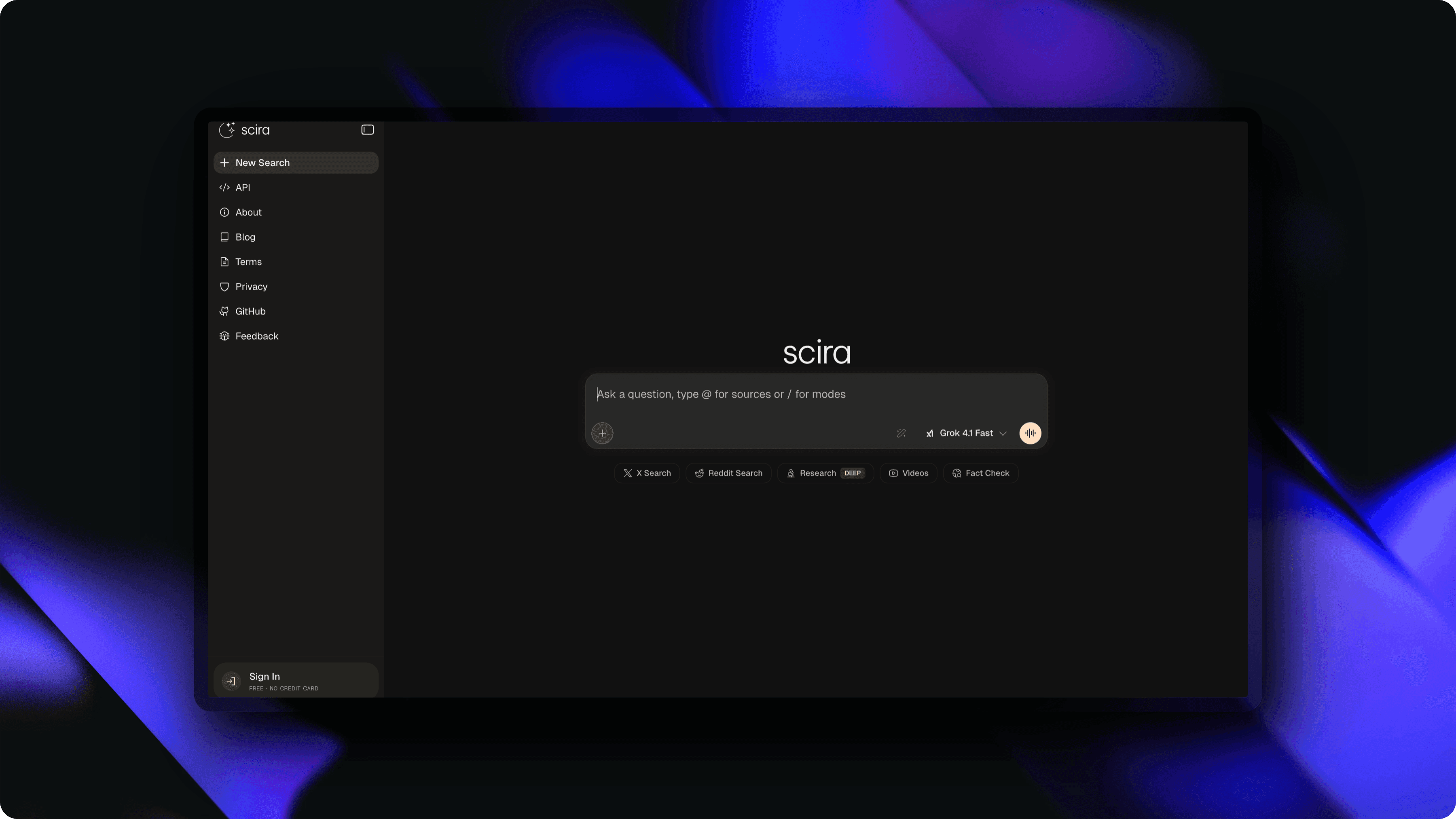
Why Documentation Screenshots Need Consistency
Documentation with inconsistent screenshot styles — different sizes, backgrounds, and framing — looks unprofessional and confuses users. When every technical documentation screenshot in your help center uses different dimensions and visual treatments, readers spend cognitive effort parsing the presentation instead of the content. A documentation screenshot tool that enforces consistent canvas sizes, backgrounds, and padding across every image creates a polished, trustworthy experience. ScreenshotStyle.com remembers your settings so every docs screenshot beautifier export matches the last one. Consistent help article images reduce support tickets by making instructions easier to follow.
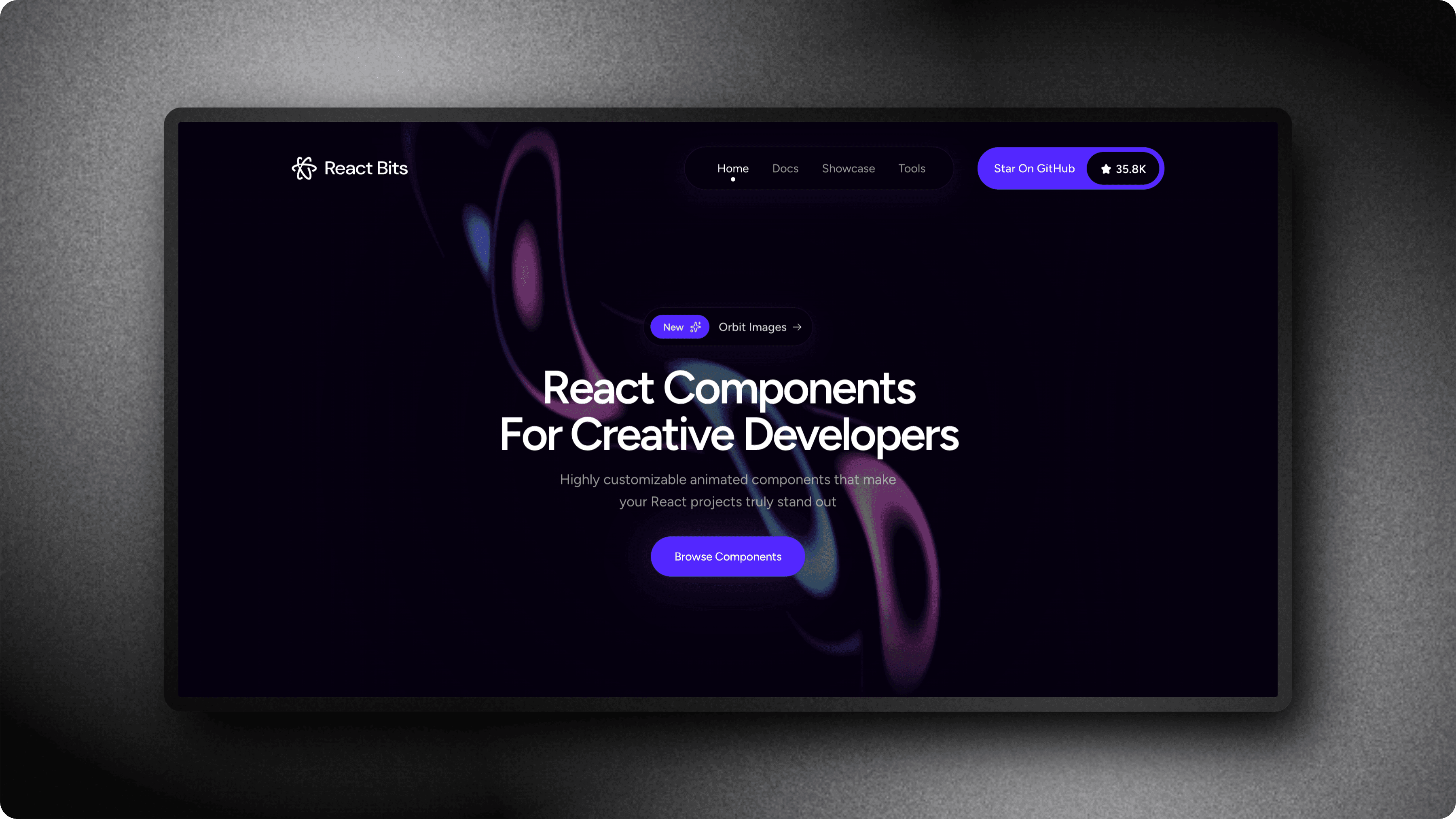
Annotations and Callouts for Complex UIs
Complex software interfaces need visual guidance — users cannot always find the button or menu item you are describing in text alone. Adding numbered callouts, text labels, and arrows to your knowledge base images turns a confusing screenshot into a clear step-by-step instruction. ScreenshotStyle.com's text and image overlay tools let you annotate any readme screenshot maker output with precise callouts that guide users through multi-step workflows. For api documentation screenshots and technical guides, annotations reduce ambiguity and make your docs self-explanatory. Well-annotated screenshots are the difference between a user solving their problem and filing a support ticket.
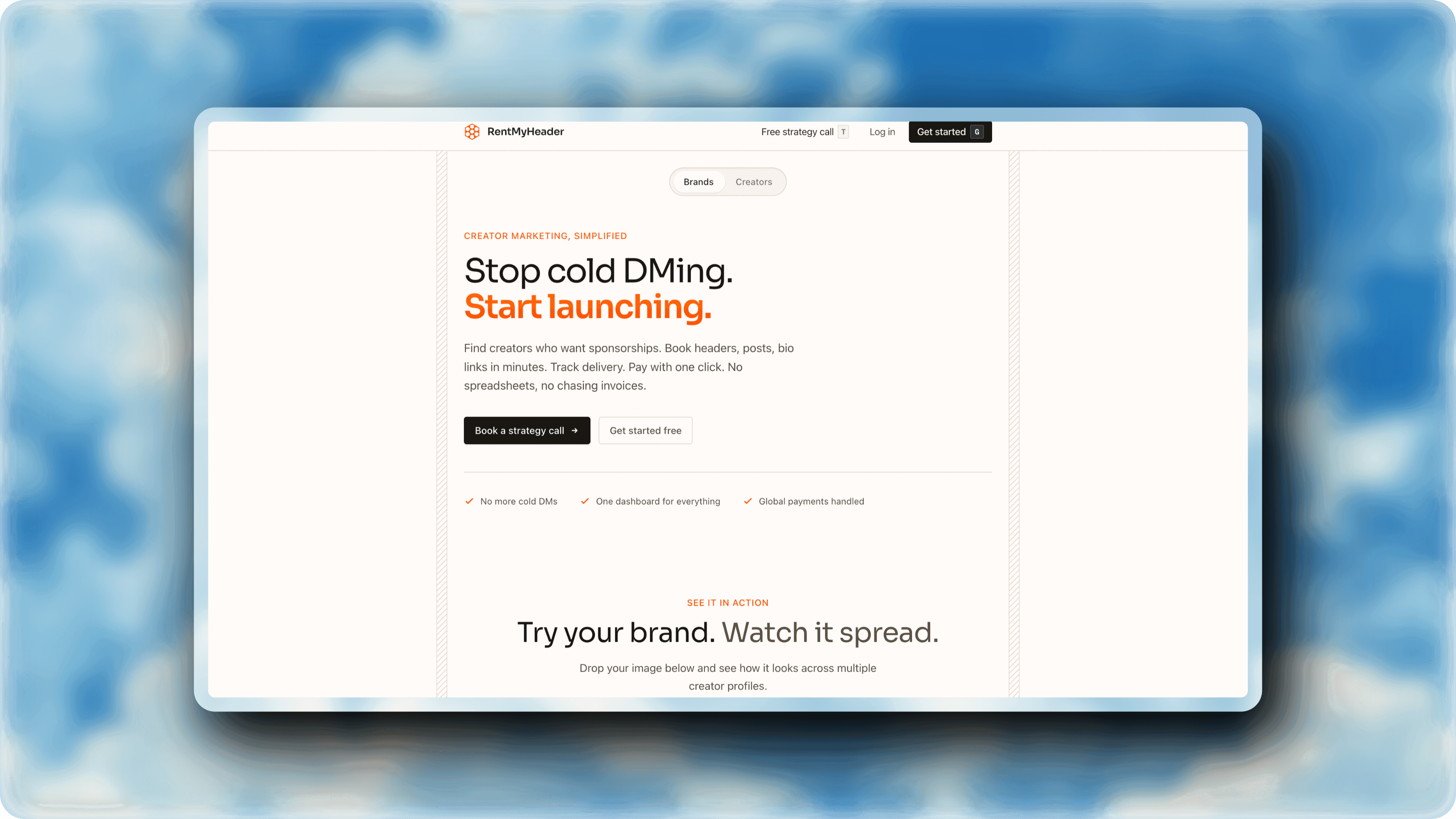
Browser Frames for Web Application Docs
When documenting a web application, wrapping your screenshots in a browser frame immediately gives users context about where they are. A github readme images workflow that includes Safari or Chrome frames makes your project look more credible and helps users map the screenshot to their own browser. ScreenshotStyle.com offers browser mockups in both light and dark mode — matching your documentation theme and your users' preferences. For technical documentation screenshots of web UIs, dashboards, and admin panels, browser frame context eliminates the visual disconnect between what users see in docs and what they see on screen.
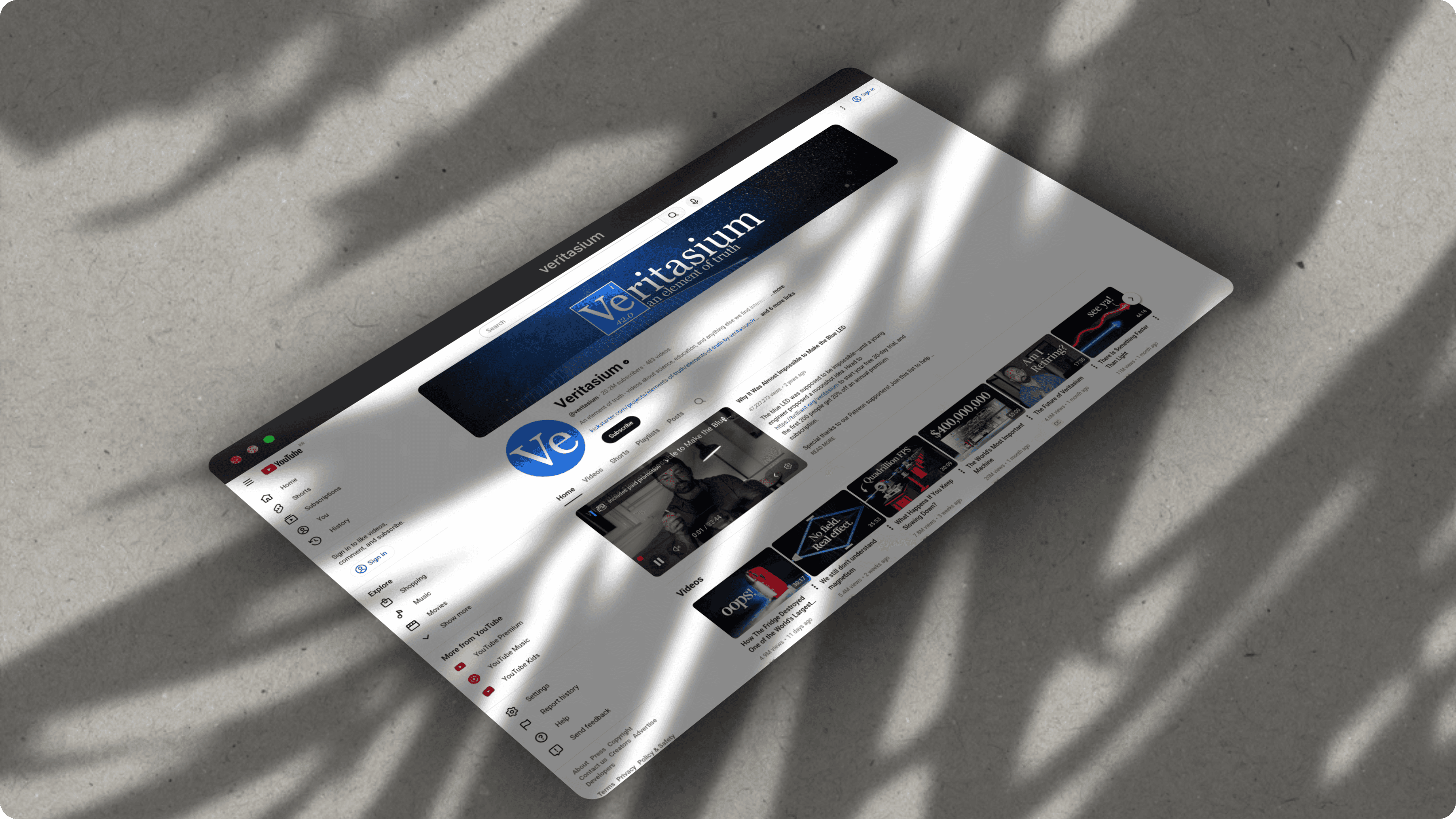
See it in action
Real examples created with ScreenshotStyle.com
How it works
Screenshot your product
Capture the screen or UI element you need to document.
Add a clean background
Choose a subtle solid or light gradient background that matches your docs theme.
Annotate key areas
Add numbered callouts, arrows, or text labels to highlight important UI elements.
Export and embed
Download as PNG and embed in your docs, README, or help center.
Common questions
What's the best format for documentation screenshots?
PNG is best for documentation screenshots because it preserves text clarity. ScreenshotStyle.com exports in PNG with optional transparency support and up to 5x resolution.
Can I add annotations to screenshots?
Yes. Use the text overlay and image overlay tools to add numbered callouts, arrows, and labels that guide readers through your screenshots.
How do I keep screenshots consistent across docs?
Set the same canvas size, background, and frame settings for all screenshots. ScreenshotStyle.com remembers your settings so every export looks consistent.