How to Animate Screenshots
Static screenshots don't capture attention the way animated ones do. Adding motion — a slow zoom, a pan across features, or a smooth fade — turns ordinary screenshots into engaging content for demos, social posts, and presentations. ScreenshotStyle.com makes it easy with 20+ animation presets and a visual timeline.
Open Editor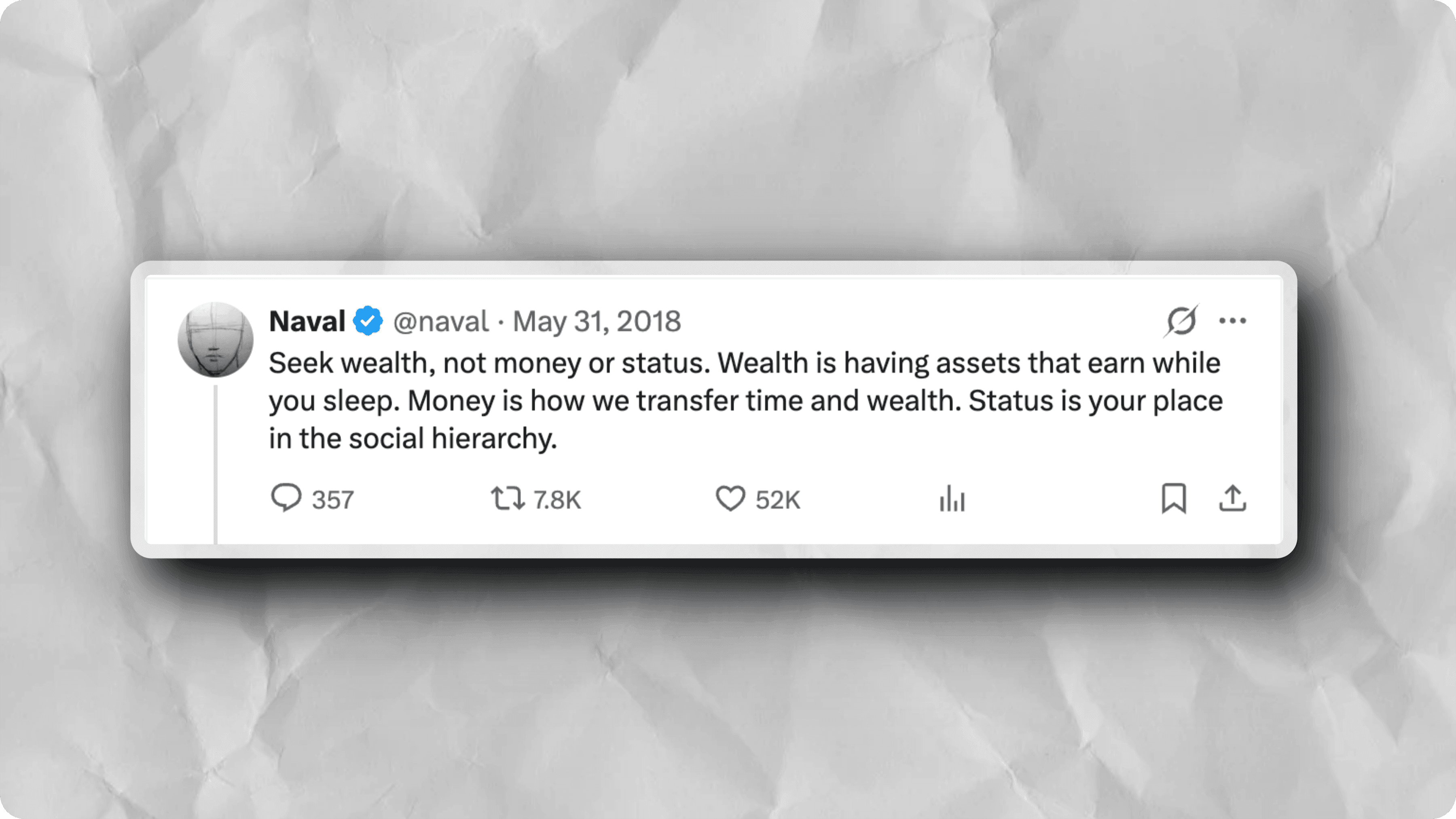
Step-by-step
Open the editor
Launch ScreenshotStyle.com's free editor in your browser. No installation or signup needed.
Upload your screenshot
Add your screenshot by dragging it onto the canvas, clicking to browse, or pasting from clipboard.
Style your screenshot
Add a background, shadows, and frames first. The animation will apply to your fully styled screenshot.
Choose an animation preset
Open the Animation section and browse 20+ presets: zoom in, zoom out, pan left/right, Ken Burns, fade, slide, and more. Click any preset to preview it instantly.
Tip: Ken Burns (slow zoom + pan) is the most versatile preset — it works for almost any screenshot and looks professional.
Customize the timeline
Adjust the animation duration, easing curve, and keyframes using the visual timeline editor. Fine-tune the start and end states for custom motion.
Export as video or GIF
Export your animated screenshot as MP4, WebM, or GIF. Choose resolution and quality settings to match your target platform.
Tip: MP4 offers the best quality-to-size ratio for social media. GIF is ideal for documentation and chat apps.
Who is this for?
Product teams creating demo videos from screenshots
Developers making animated GIFs for README files
Marketers producing engaging social media content
Designers showcasing UI animations in portfolios
Educators creating visual tutorials and walkthroughs
Example results
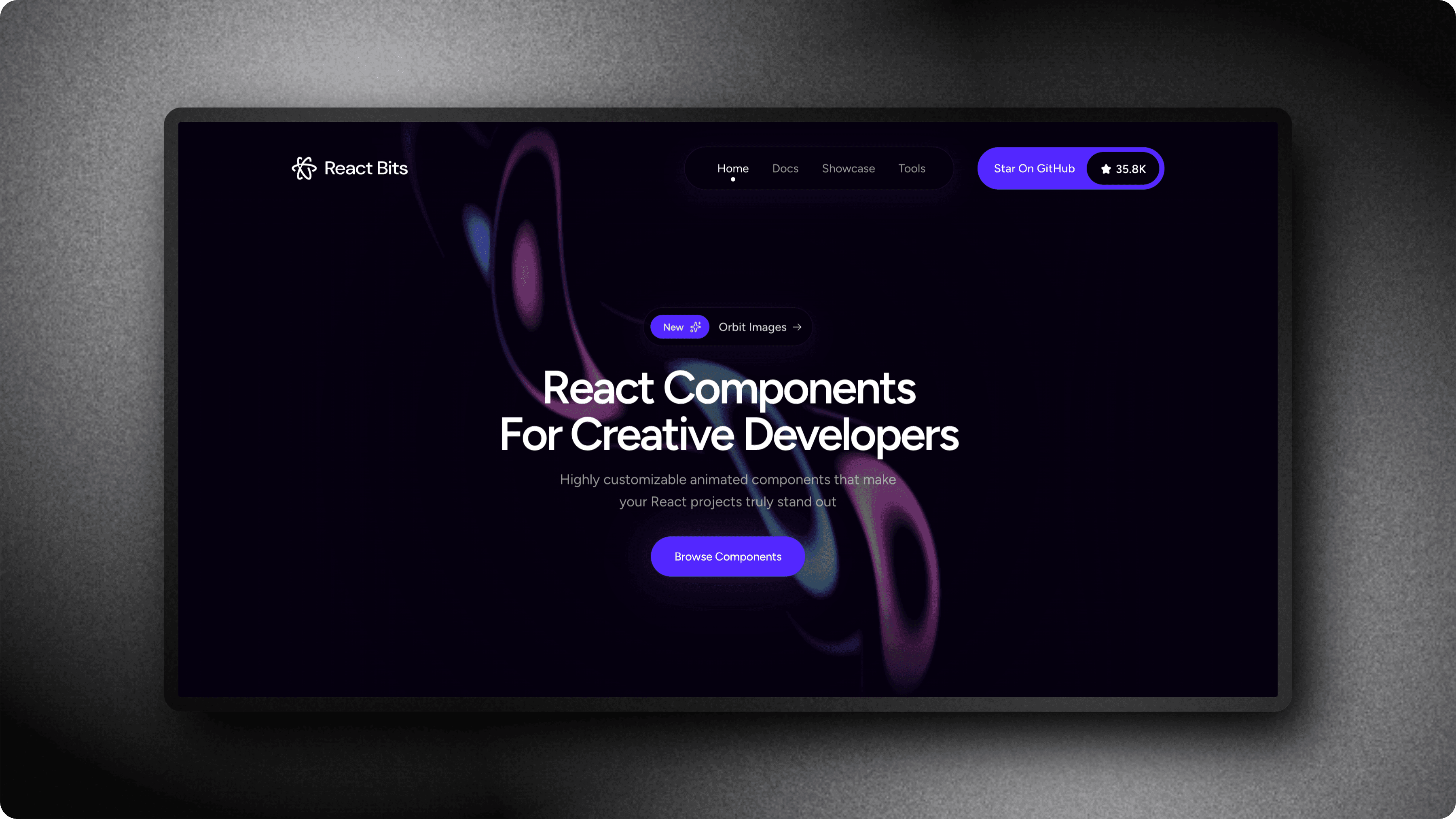
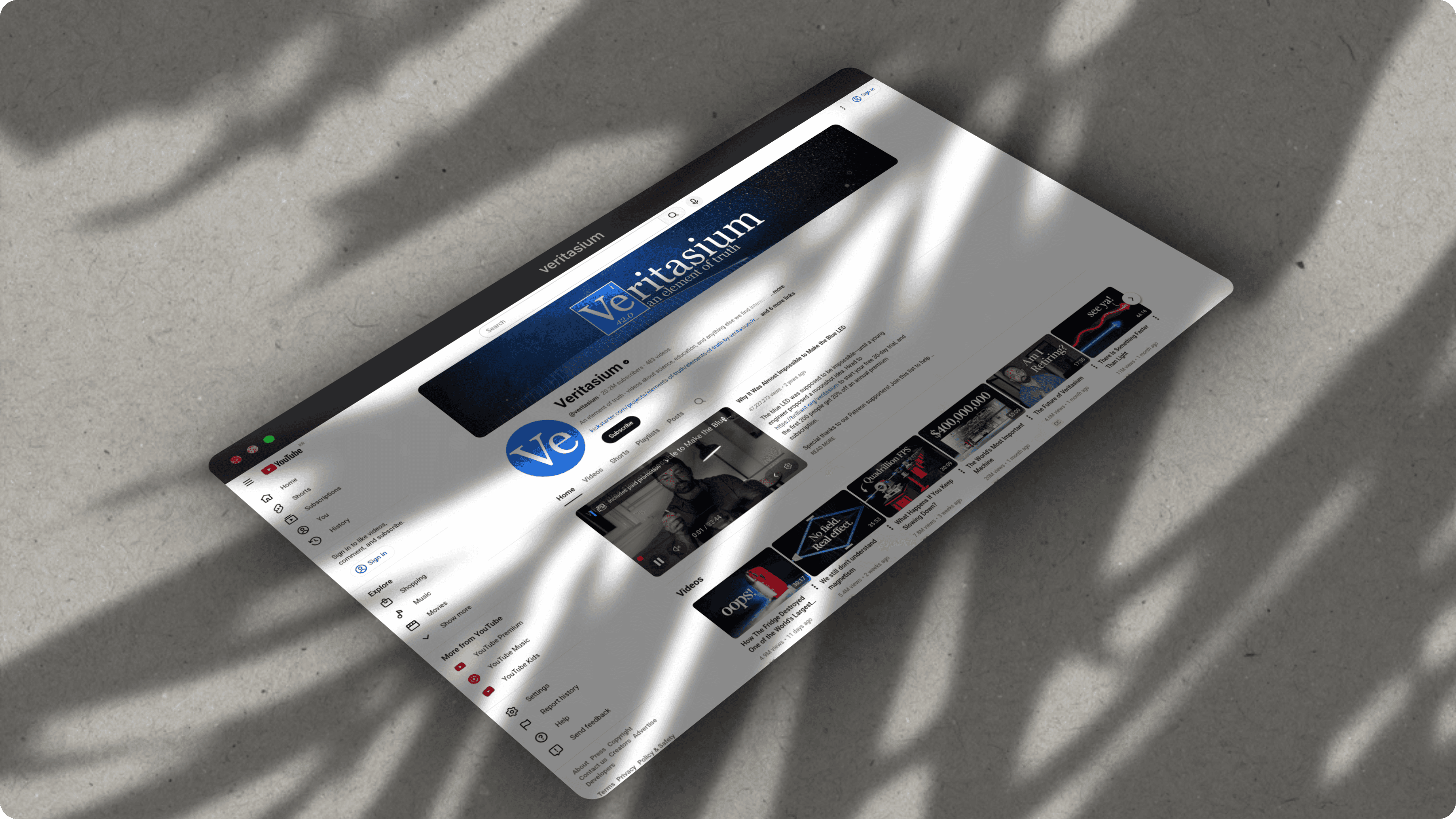
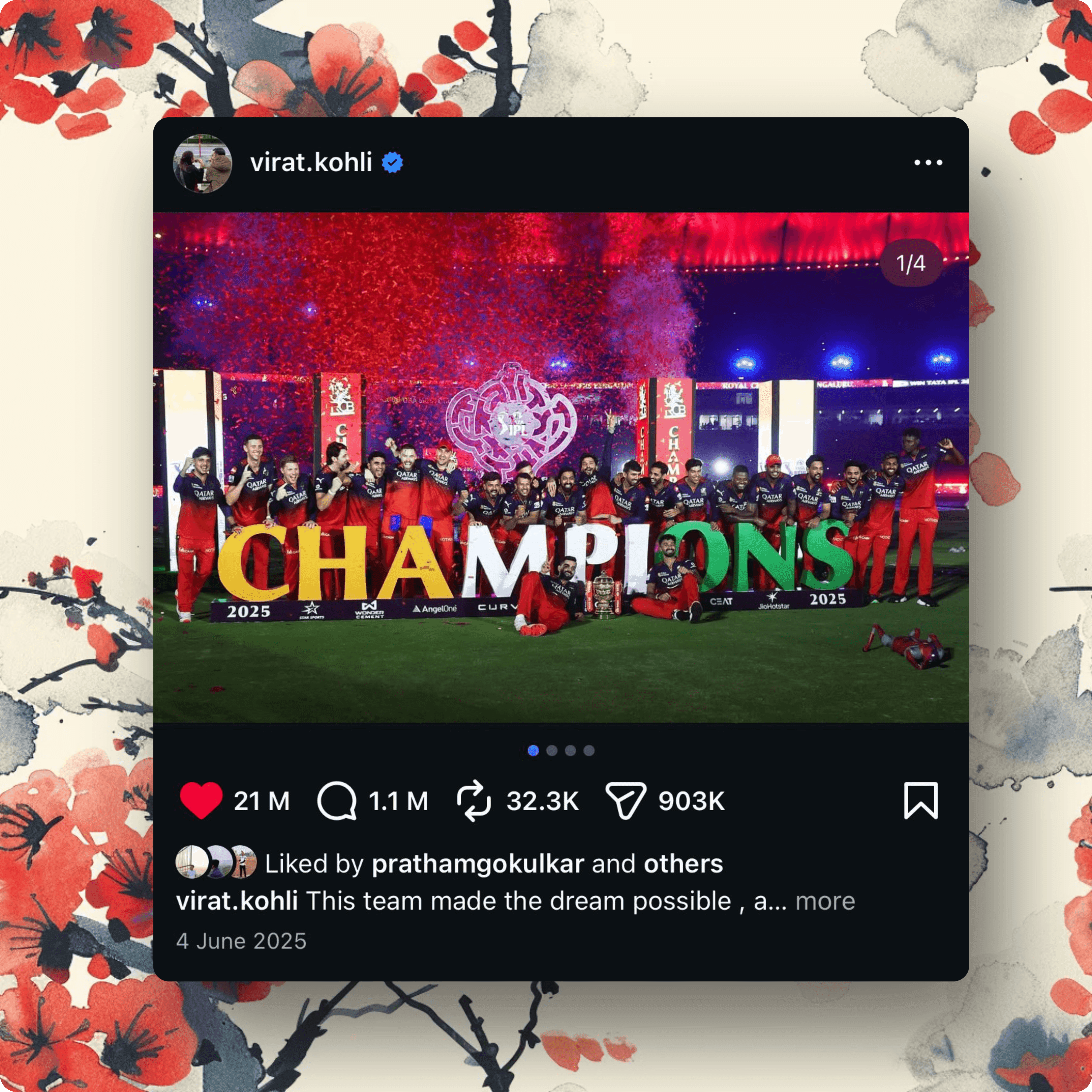
Screenshots styled with ScreenshotStyle.com
Common questions
What animation effects are available?
ScreenshotStyle.com offers 20+ animation presets including zoom in/out, pan (all directions), Ken Burns, fade, slide, rotate, bounce, and pulse effects. You can also create custom animations with the keyframe editor.
Can I export animations as video files?
Yes. ScreenshotStyle.com exports animations as MP4, WebM, and GIF formats at customizable resolution and quality settings.
Do I need video editing software to animate screenshots?
No. ScreenshotStyle.com handles everything in the browser — from styling your screenshot to animating and exporting as video. No After Effects, Premiere, or other software needed.