How to Create Social Media Graphics from Screenshots
Raw screenshots get scrolled past on social media. But a screenshot styled with a gradient background, headline text, and proper dimensions stops thumbs and drives engagement. ScreenshotStyle.com makes it easy to turn any screenshot into a scroll-stopping social media graphic — sized perfectly for every platform.
Open Editor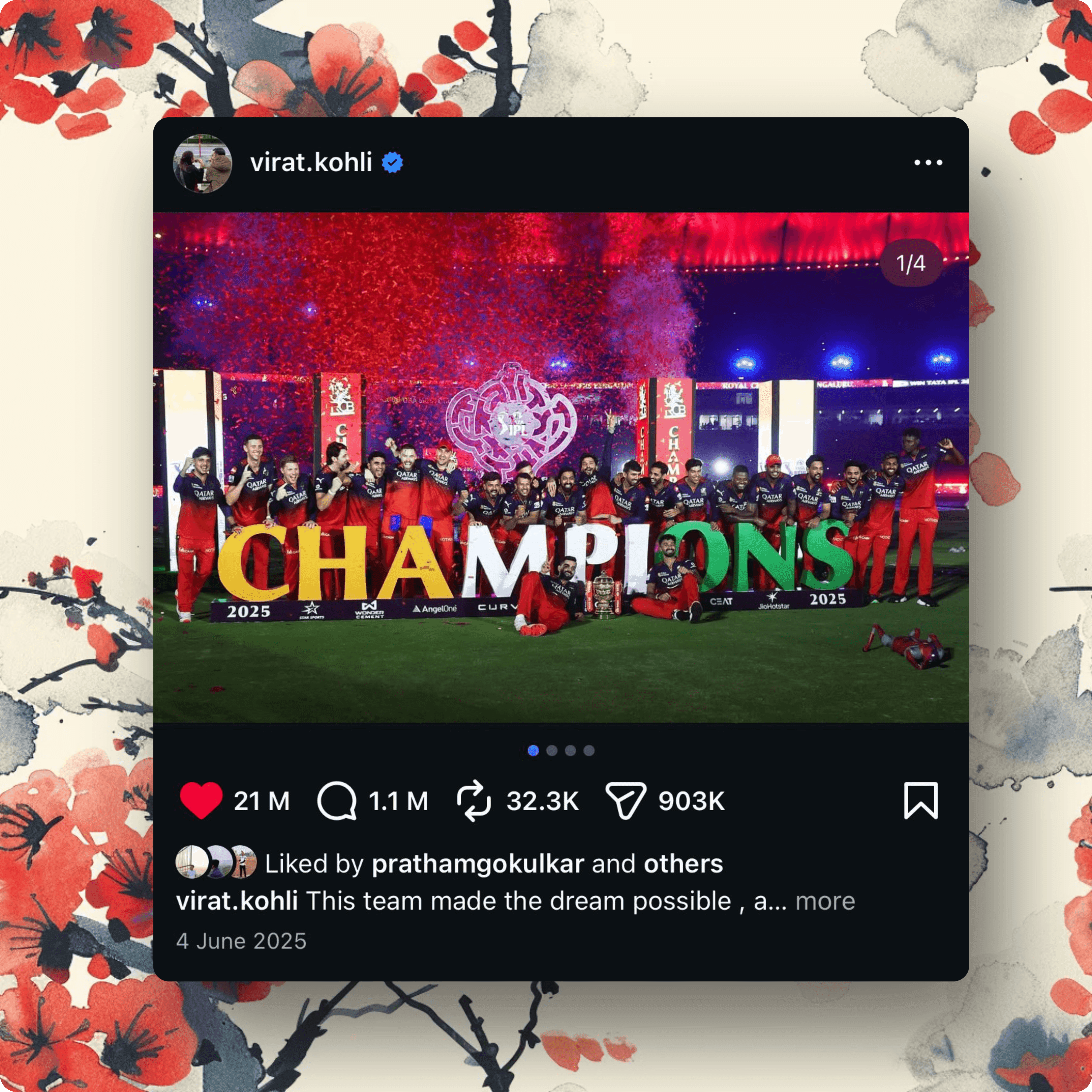
Step-by-step
Open the editor
Launch ScreenshotStyle.com's free editor. No downloads, accounts, or design experience needed.
Upload your screenshot
Add your screenshot via drag and drop, file browser, or clipboard paste.
Set the canvas size for your platform
Choose an aspect ratio that matches your target platform: 16:9 for Twitter/LinkedIn, 1:1 for Instagram feed, 9:16 for Instagram Stories, or set a custom size.
Tip: Creating for multiple platforms? Export one version, then change the aspect ratio and re-export for each platform.
Add a background
Select a gradient or solid color background that matches your brand or the screenshot's color palette. Bold gradients perform well on social feeds.
Add text overlays
Layer a headline, subtitle, or call-to-action on top. Choose from 25+ fonts, adjust size, color, and add text shadows for readability.
Tip: Keep text short and punchy — 3-7 words for headlines. Ensure text is large enough to read on mobile screens.
Apply finishing touches
Add shadows, rounded corners, and device frames. Consider adding arrow overlays to highlight specific features in the screenshot.
Export for your platform
Download your graphic as PNG at 2x or higher resolution. High-res images look sharper on retina displays and get better engagement on social media.
Who is this for?
SaaS founders sharing product updates on Twitter/X
Marketers creating LinkedIn carousel content
Content creators making Instagram posts from app screenshots
DevRel teams promoting developer tools on social media
Anyone sharing screenshot-based content on social platforms
Example results
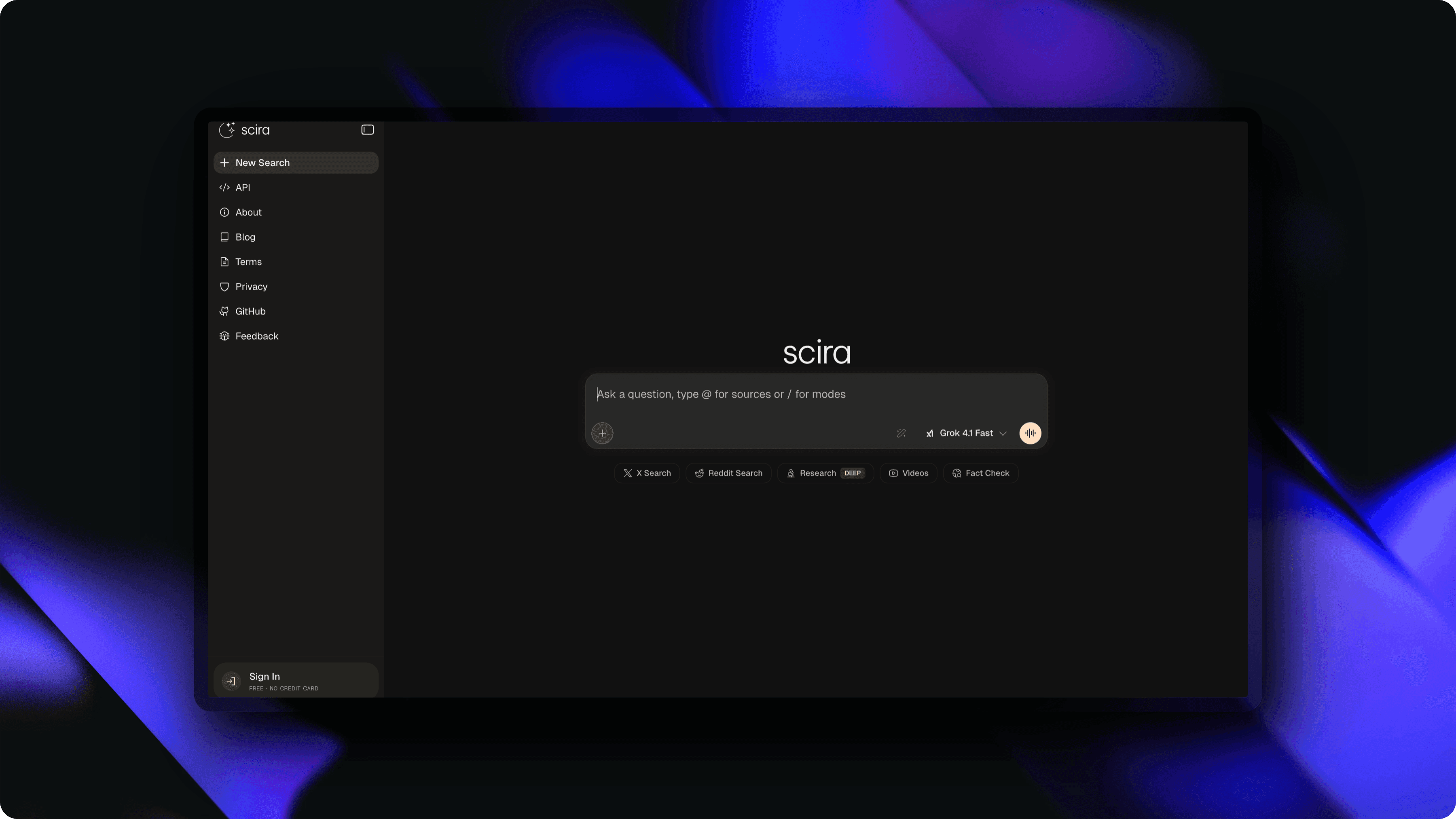
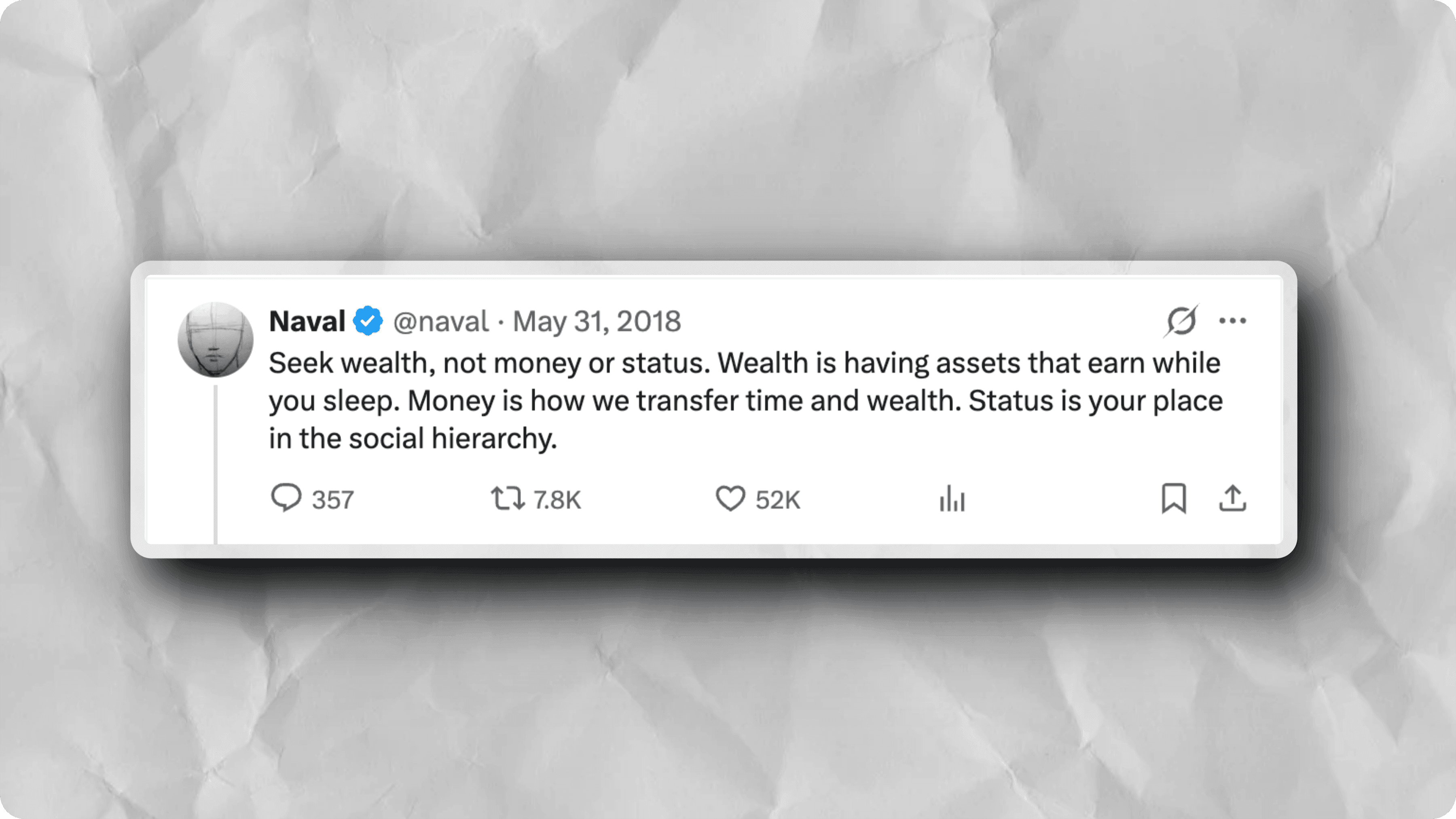
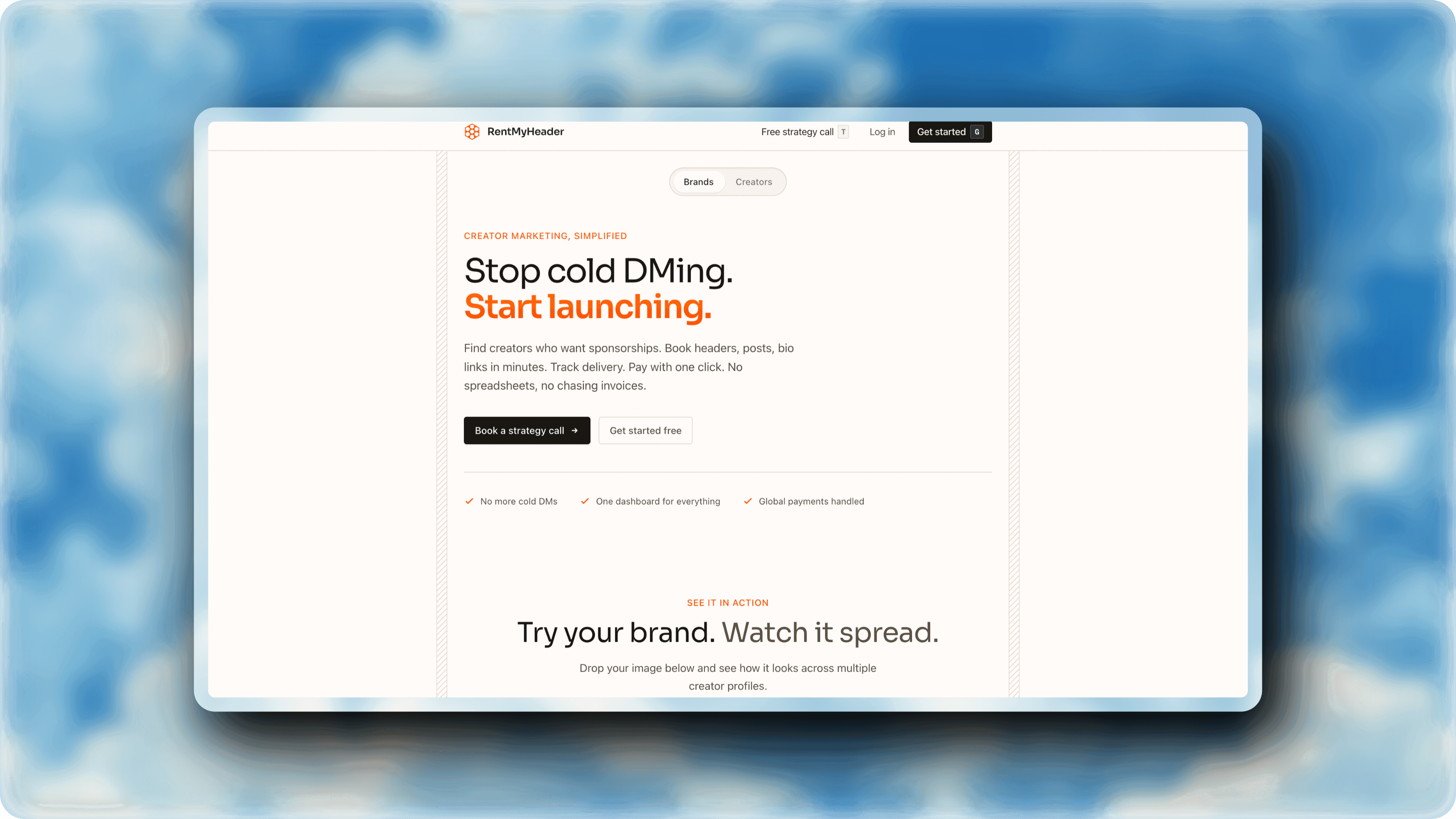
Screenshots styled with ScreenshotStyle.com
Common questions
What sizes work best for social media screenshots?
Twitter/X and LinkedIn work best at 16:9 (1200x675px). Instagram feed posts use 1:1 (1080x1080px). Instagram Stories and TikTok use 9:16 (1080x1920px). ScreenshotStyle.com supports all these ratios.
Can I add text over my screenshot for social media?
Yes. ScreenshotStyle.com includes a full text overlay system with 25+ fonts, custom colors, shadows, and positioning. Perfect for adding headlines and calls-to-action to screenshot-based social posts.
How do I make screenshots stand out on social media?
Use a bold gradient background, add a short headline above or below the screenshot, round the corners, and add a subtle shadow. Export at 2x resolution for retina displays. ScreenshotStyle.com handles all of this in one tool.