How to Add a Background to a Screenshot
Plain screenshots on white backgrounds look unprofessional in presentations, social media posts, and documentation. Adding a styled background instantly makes your screenshots look polished and attention-grabbing. Here's how to do it in under 30 seconds with ScreenshotStyle.com.
Open Editor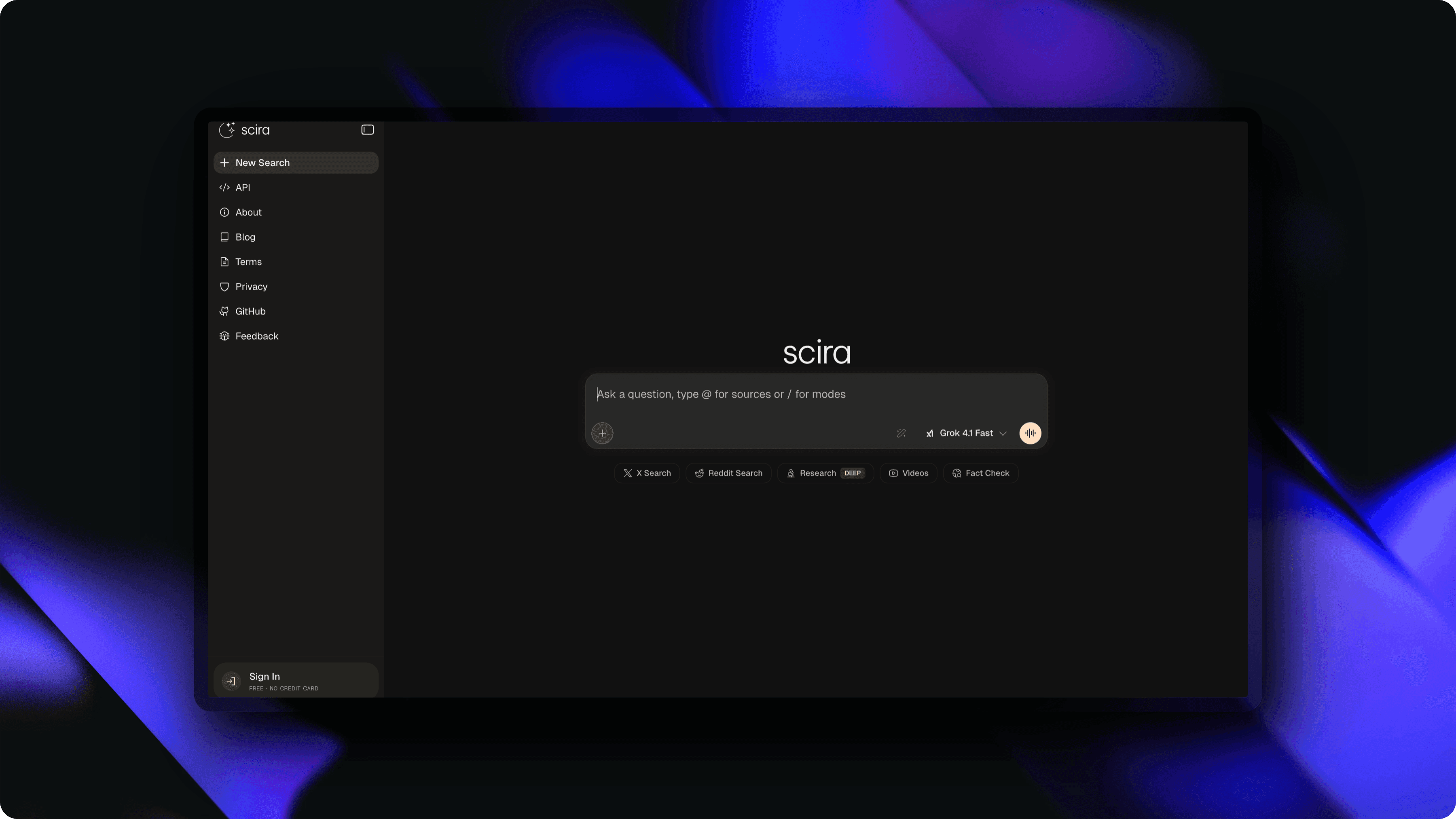
Step-by-step
Open the editor
Go to ScreenshotStyle.com and open the free editor. No account or installation needed — it runs entirely in your browser.
Upload your screenshot
Drag and drop your screenshot onto the canvas, or click to browse your files. PNG, JPG, and WebP formats are supported.
Tip: You can also paste a screenshot directly from your clipboard with Ctrl+V / Cmd+V.
Choose a background
Open the Background section in the settings panel. Pick from 100+ gradient presets, solid colors, mesh gradients, or upload a custom background image.
Tip: Gradient backgrounds work best for social media. Try a subtle gradient that complements your screenshot's color scheme.
Adjust padding and size
Use the padding slider to control how much background is visible around your screenshot. Adjust the canvas aspect ratio for your target platform (16:9, 4:3, 1:1, etc.).
Export your image
Click Export and download your beautified screenshot as PNG or JPG. Choose up to 5x resolution for crisp output on retina displays.
Who is this for?
Developers sharing code screenshots on Twitter/X
Marketers creating visuals for blog posts and landing pages
Product teams preparing app store screenshots
Designers showcasing UI work in portfolios
Anyone who wants professional-looking screenshots for presentations
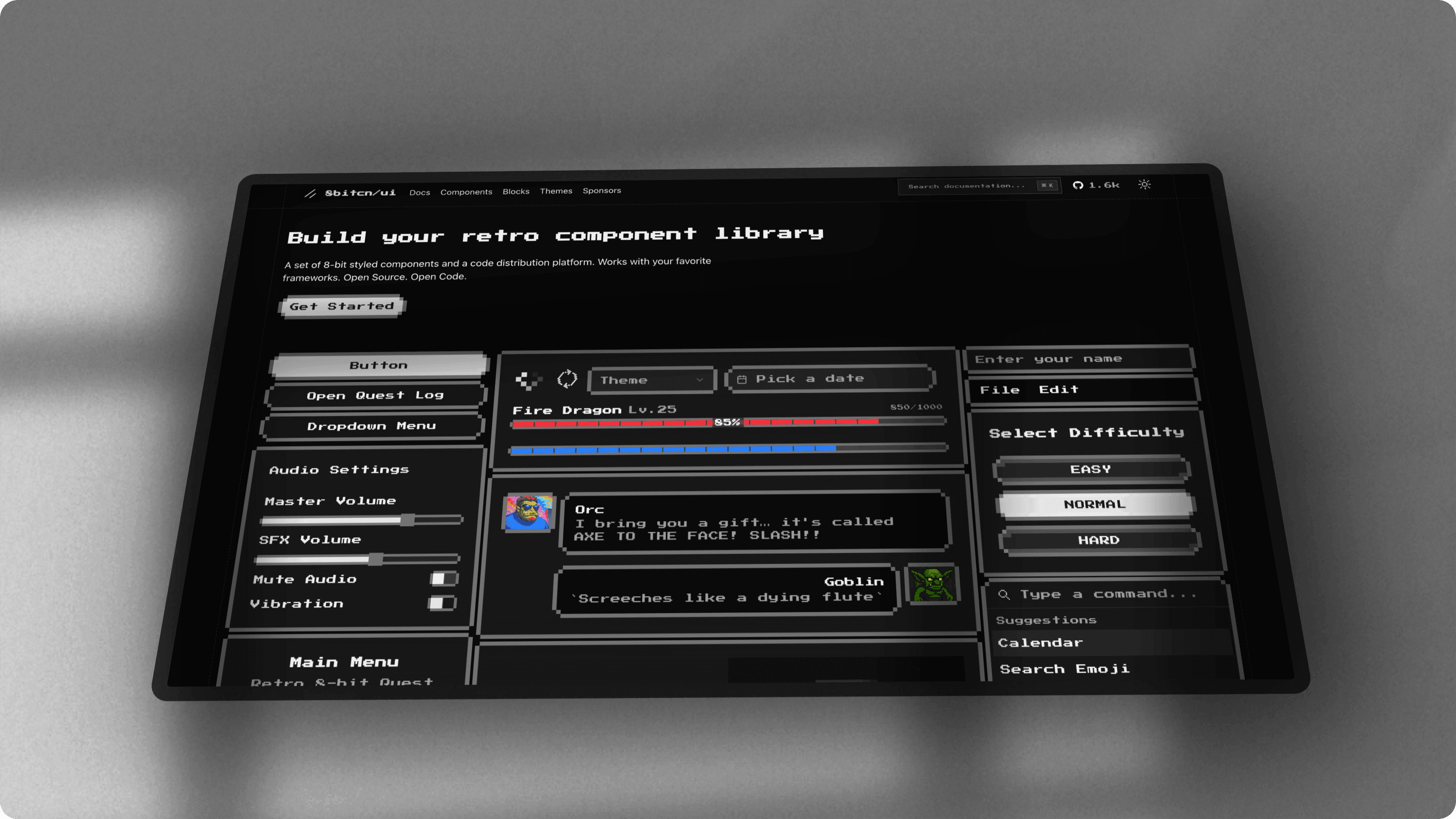
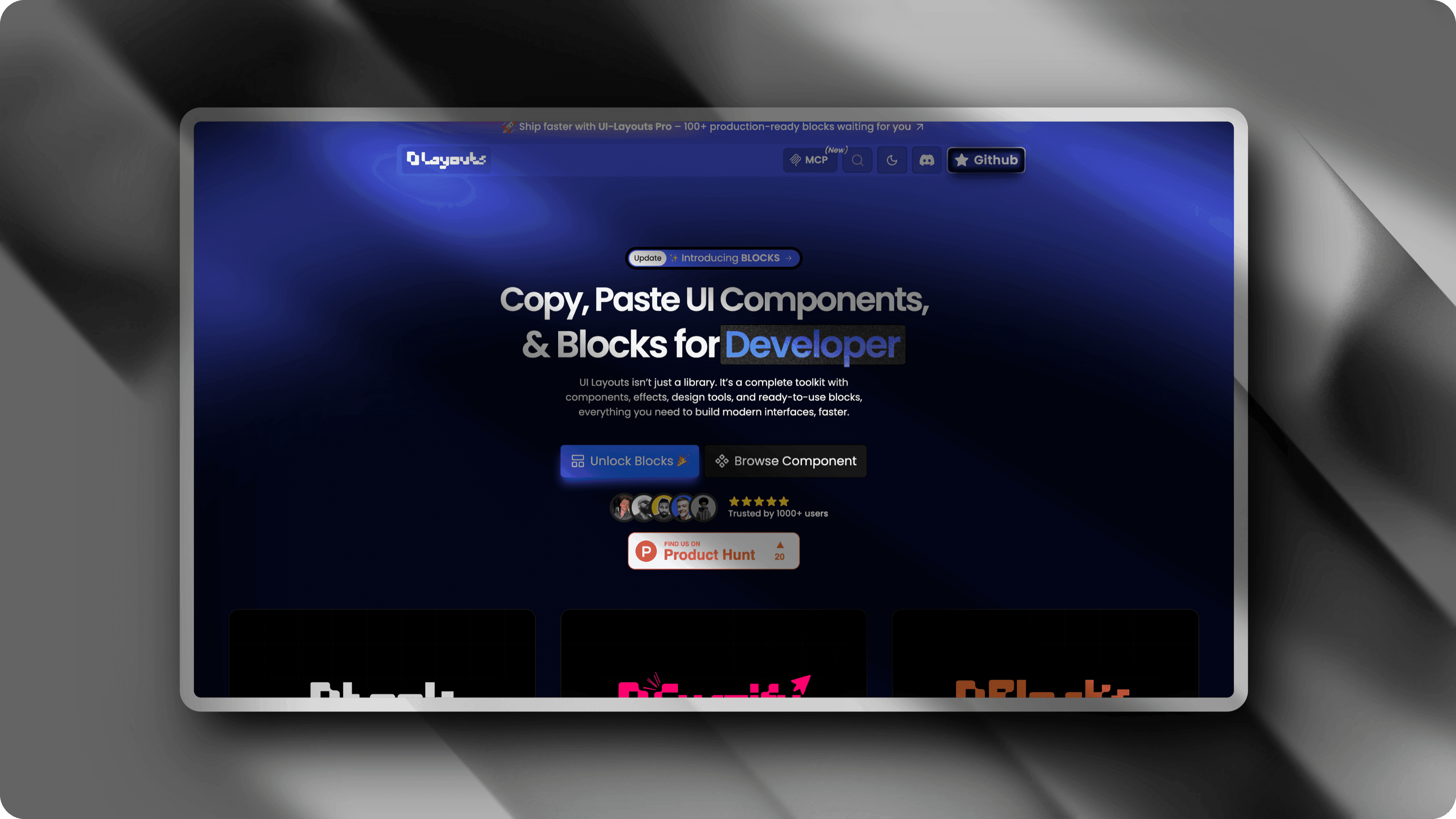
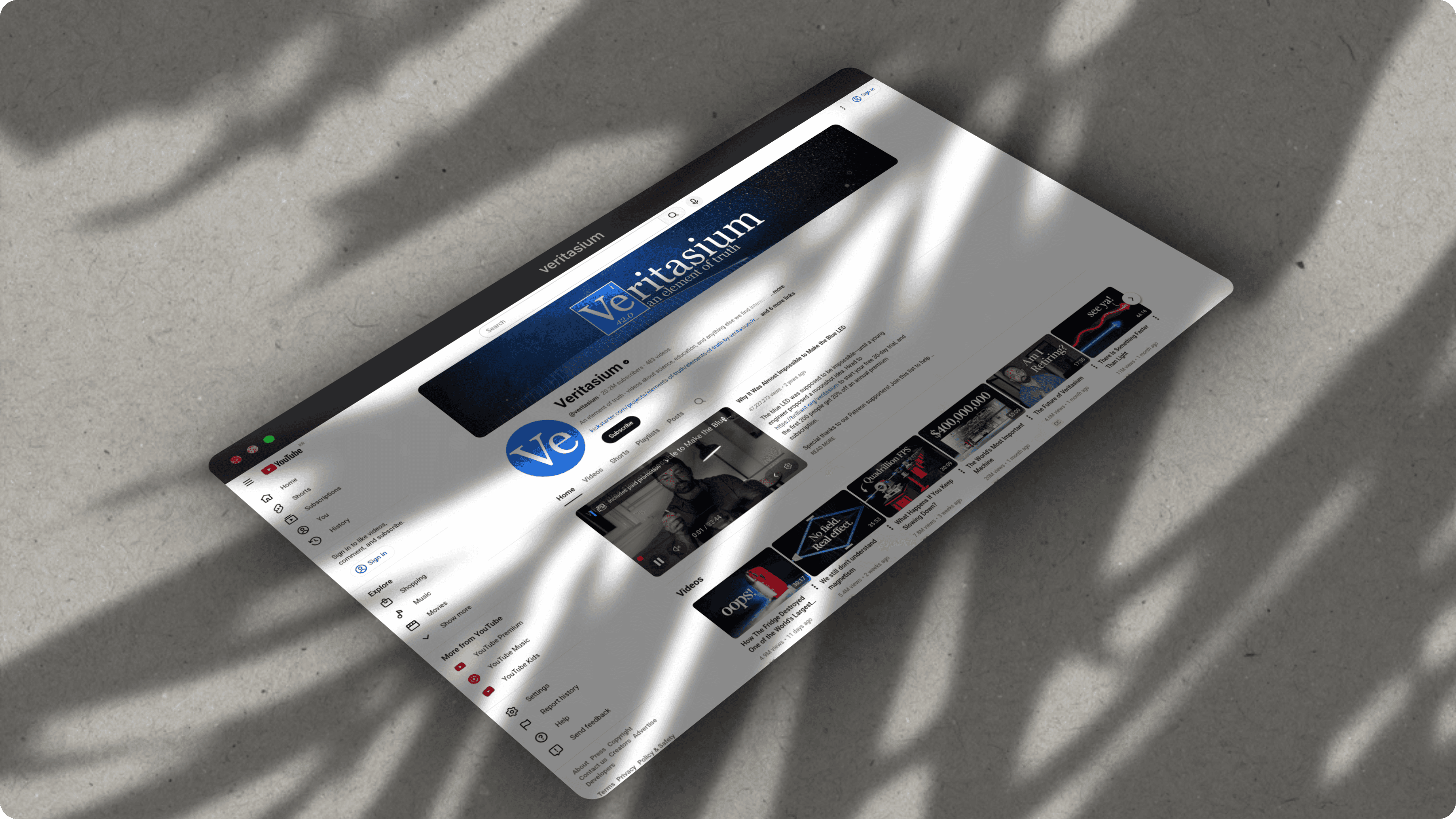
Example results
Screenshots styled with ScreenshotStyle.com
Common questions
Can I add a custom background image to my screenshot?
Yes. ScreenshotStyle.com lets you upload any image as a background, in addition to 100+ built-in gradient and solid color presets.
What's the best background for social media screenshots?
Gradient backgrounds tend to perform best on social media because they add visual interest without distracting from the screenshot content. ScreenshotStyle.com includes presets optimized for Twitter, LinkedIn, and Instagram.
Is ScreenshotStyle.com free for adding backgrounds?
Yes. All backgrounds, effects, and export options are completely free with no watermarks, no signup, and no usage limits.